


Every game connects a little differently, but finding your server address works the same way regardless of which game you’re running.
Finding Your IP and Port
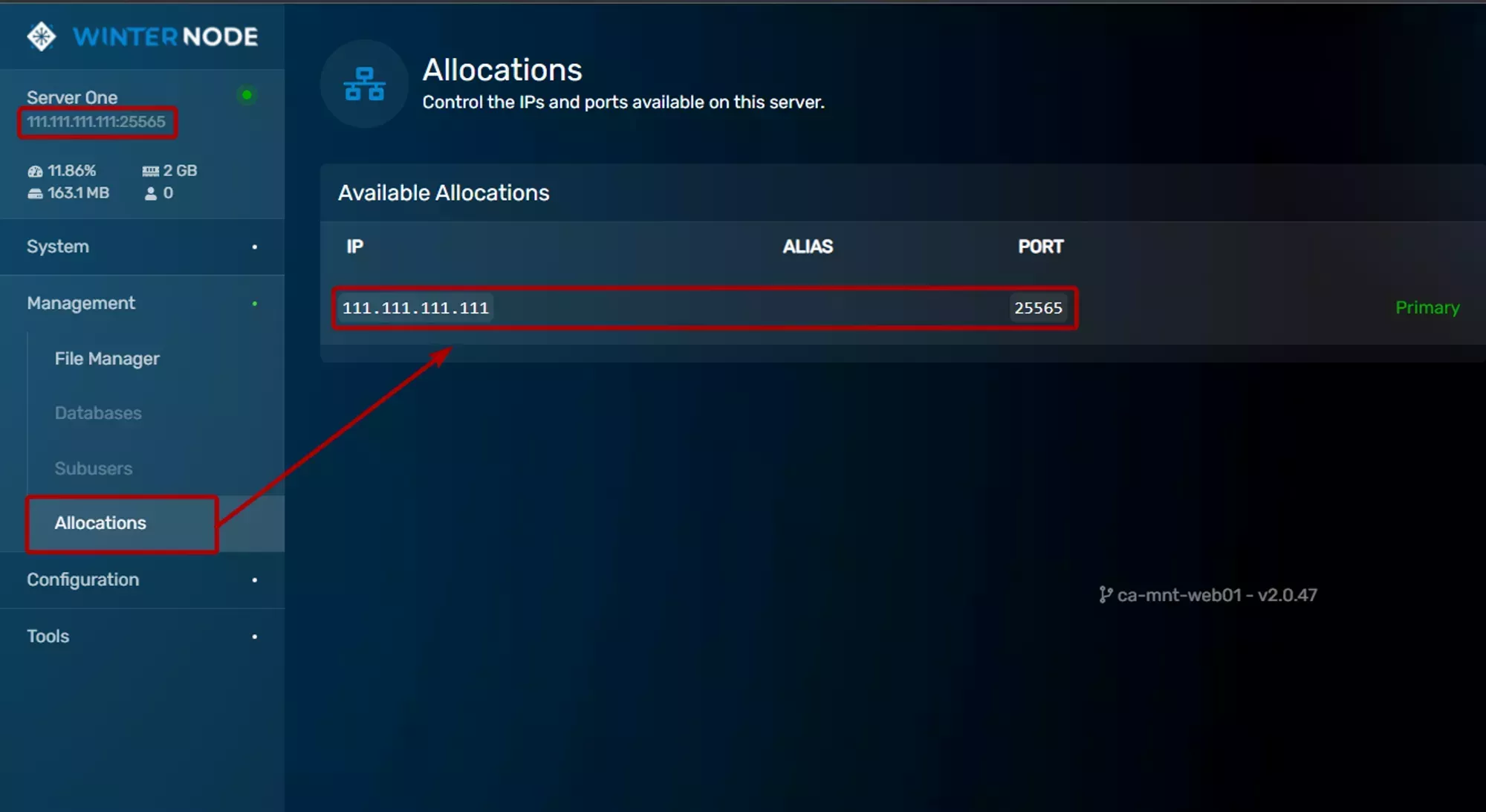
Your server’s connection address is shown in two places:
On the server list (GCP homepage), the primary IP is displayed under your server’s name.
In the Allocations tab, navigate to Management → Allocations when viewing your server to see all ports assigned to your server.
The address is displayed as IP:Port (for example, 123.45.67.89:25565). The allocation marked Primary is the one players use to connect unless your game uses a query port (see below).


Query Port Games
Most games connect using the primary allocation port. However, a few games use a separate query port instead. If you’re running one of these games, connecting with the primary port won’t work.
Using a Subdomain
Instead of sharing a raw IP:port, you can create a subdomain through the Sub-domain Manager. This gives you a readable address like myserver.winternode.host that’s easier to remember and share.
For games that support SRV records (like Minecraft Java and Vintage Story), the subdomain can hide the port entirely, so players just enter the subdomain. For other games, players will need to enter the subdomain and port separately (e.g., myserver.winternode.host:12345).
A Dedicated IP is another option. It uses the game’s default port, so no port is needed regardless of SRV support.
Game-Specific Guides
Each game has its own connecting article with step-by-step instructions: