


 ECO: Global Survival
 Eco has an in-game server list, which includes a “Favorites” and “Recent” list. Your players can directly join your server using your IP which will add it to their “recent” list. You can find instructions below on connecting directly to your server. You can also add your server to the Steam Server Browser as an alternative.
If your server is public, then players will also be able to find your server on the Server Browser.
Finding your server IP
Eco uses the Primary Allocation for connections, so you can find the IP address on the server list under the name, and on the server page on the top right corner under the name.

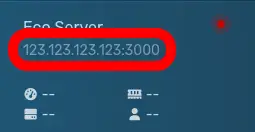
Adding a server
With the server IP in hand, you’ll need to start the game and select the “Your Worlds” option from the game menu.
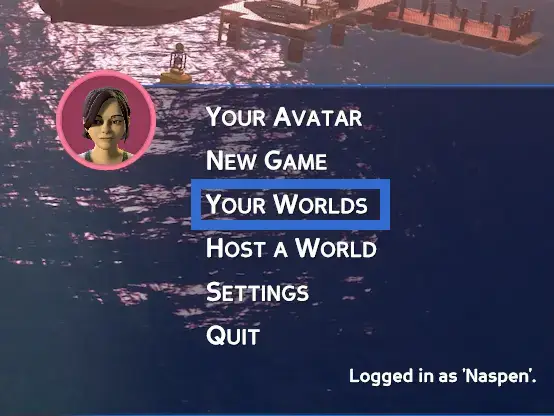
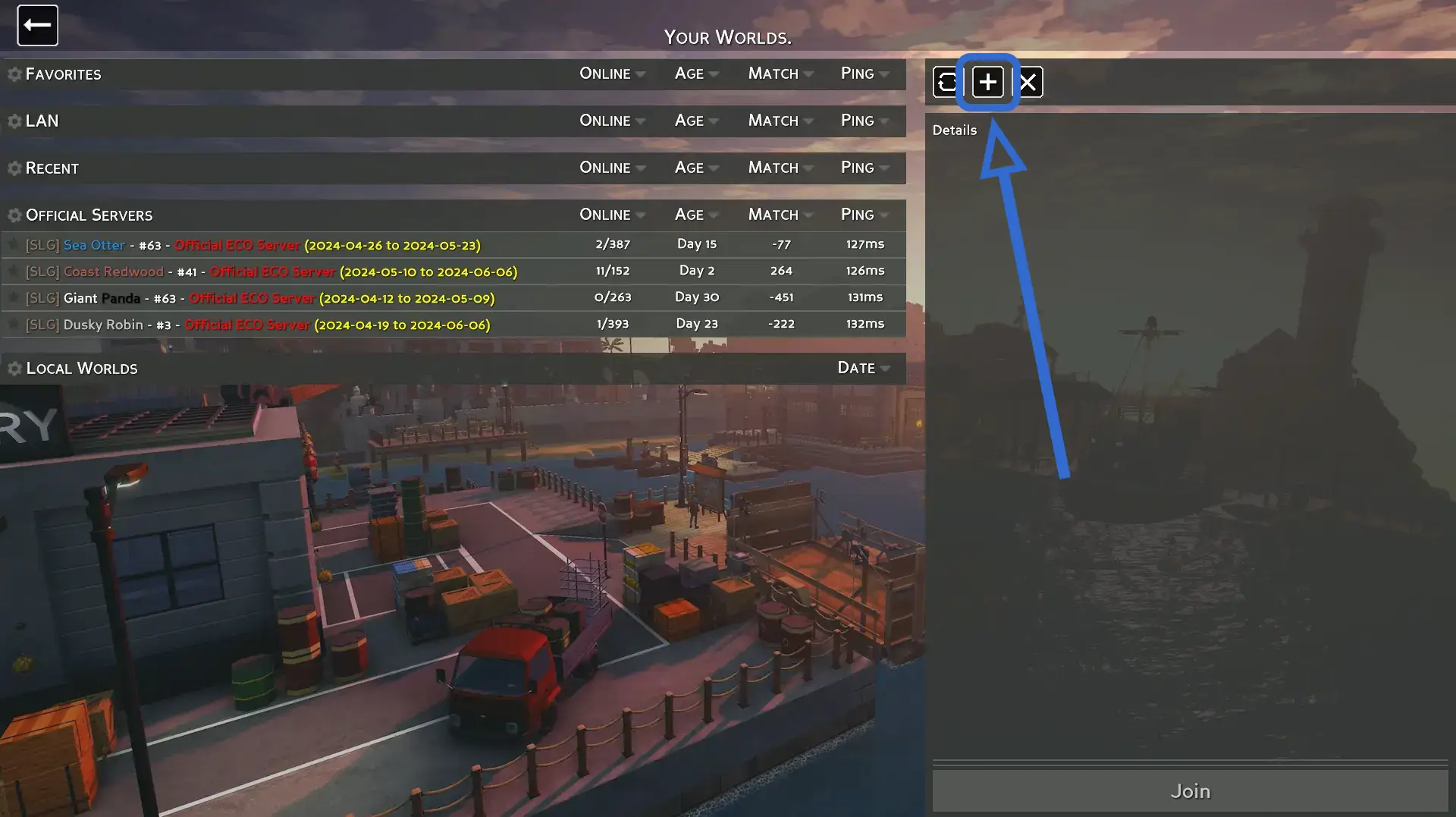
You should now see a screen that looks similar to the one on the right, where you can find a + icon on the top of the right side of the screen above the “Details” pane.
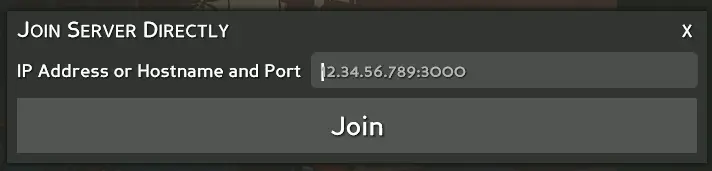
After clicking on the + button, you’ll see a modal similar to the one to the right asking for the IP address. Enter the address here and click “join”. You’ll be connected to the server and it’ll be added to the “Recent” list when you want to connect again.
Troubleshooting Connection Issues
If you or your players are getting a “connection timed out” error or the server isn’t appearing in the server browser:
- Verify the server is online. Check the Game Panel to confirm the server is running and not stuck in a crash loop.
- Use the correct IP and port. Eco uses the Primary Allocation shown in the Game Panel. Make sure you’re including the port (e.g.,
192.168.1.1:3000). - Try connecting by direct IP. If the server doesn’t appear in the server browser but direct IP connections work, this may be a
Network.ecoconfiguration issue. See Network.eco: IPAddress and RemoteAddress. - Run an MTR test. If only some players can connect, the issue may be network-related. Have affected players run an MTR test and send the results to support.
- Don’t modify Network.eco IP settings. Changing the
IPAddressfield inConfigs/Network.ecofrom its default can prevent the server from starting. See the warning in Server Options for details.