


NoVNC is a browser based implementation of the VNC (Virtual Network Computing) client which allows you to remotely control your server as if you were looking at a monitor attached to the server itself.
All WinterNode Windows/Linux servers can be connected to via NoVNC using the Server Control Panel or Client Area. NoVNC can be slow and somewhat unstable, so it’s best used as a backup method of connection if you’re locked out of other remote connection options. Your primary methods should generally be SSH for Linux.
Client Area
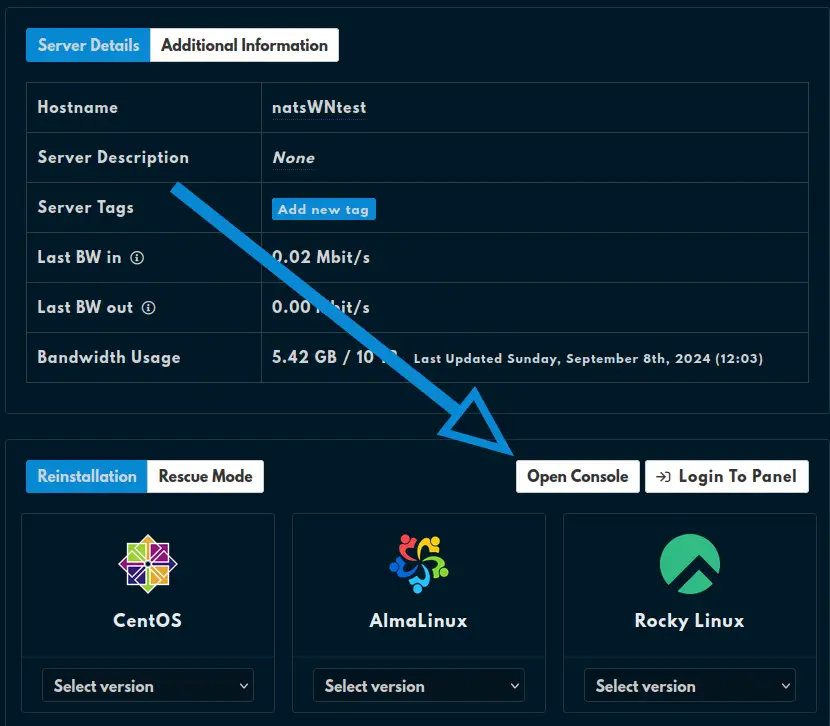
You can open a NoVNC session from the Client Area by selecting the “Manage Service” button for your server from the “Active Products/Services” list then scrolling down below the “Server Details/Additional Information” pane. Next to the “Reinstallation/Rescue Mode” buttons is the Open Console button which will open a new tab containing the NoVNC session.
Server Control Panel
NoVNC is accessible through the Server Control Panel by selecting the server from your “Servers” list and then clicking on the “Console” button on the top right of the page. This will open a new tab containing the NoVNC session.
