


SSH is the most common way to control Linux servers and you’ll need to use it to at least get started with your server. SSH allows you to log in to your server’s terminal remotely and send commands over the internet. That makes it the primary way that you’ll be able to do things like install and configure programs.
There are endless ways you can connect over SSH and the exact method you use depends on your operating system and what you need out of the method. We’ll go over a few common methods and operating systems below.
Windows
Until recently, the most popular way to connect to SSH from a Windows PC was Putty, but Windows has started expanding its Linux compatibility and now has its own SSH client which allows you to connect to SSH from the command line or powershell.
Putty
Putty is still a good option if you want to use a GUI to save your connections, and it has a lot of powerful features that can make understanding it useful. We’re just going to cover how to get your log in information and start the initial session.
You’ll need to start by downloading putty from here, then after opening it’ll look similar to the image on the right.
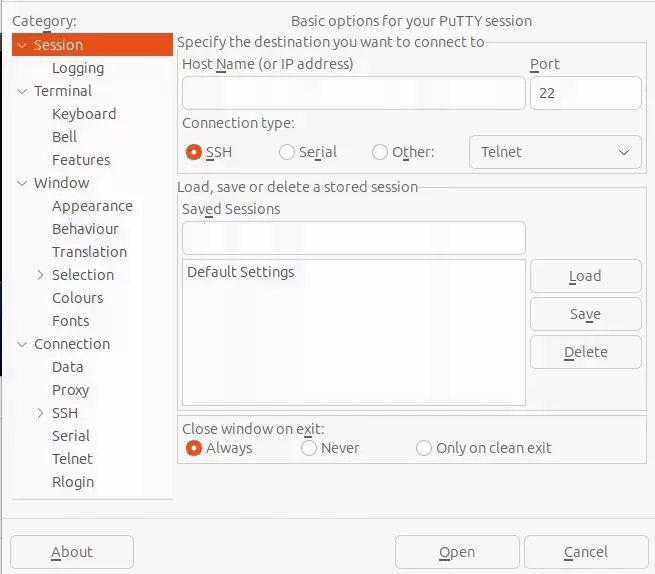
For a basic SSH session, you’ll need to enter the IP Address of your server into the “Host Name (or IP address)” field, fill out the “Saved Sessions” field with a name for your server, and then click “Save” to save the server address so you can reconnect later.
With the session details saved you’ll be able to select it from the “Saved Sessions” list and then press “Load” and then “Open” to start the SSH connection. The first time you connect you’ll get a warning that starts with:
The host key is not cached for this server:The rest of the message will contain information about your server’s “fingerprint” and asks you if you’d like to “trust” the host by adding the provided key to the cache, this is normal for the first connection and you can click “Accept”.
After accepting the host key, you’ll be presented with a terminal, the first line being “login as:”. You’ll need to enter your username and password, pressing enter to submit each of them.
CMD/PowerShell
Windows now includes an SSH client by default which can be accessed using the ssh command from the command line or powershell terminal.
For either method, you’ll need to open a command line/powershell terminal and type ssh <user>@<host> where <user> is the user you want to log in as, by default root and <host> is your server’s IP address.
If this is your first time connecting to the server you’ll get a warning that starts with:
The authenticity of host `<IP/Domain> (<IP>)` can't be established.The rest of the message will contain information about your server’s “fingerprint” and asks you if you’d like to “trust” the host by adding the provided key to the cache, this is normal for the first connection and you can type yes into the command line/powershell terminal and press enter.
After accepting the host key, your command line/powershell terminal will ask for the password of the user you specified in the ssh command.
<user>@<host>'s password:When you enter your password and press enter, your command line/powershell terminal will start sending and receiving commands from your server instead of to your PC. You can easily distinguish between a terminal that’s connected to your PC and a terminal that’s connected to a server by looking at the far left of each line.
Linux terminals will be prefixed with the <user>@<host> information you used to login or <user>@<hostname> where <hostname> is a value you can specify to provide your server with a local name.
Linux
Most Linux distributions include an SSH client and server by default which allows them to easily connect to each other. The following instructions will work as long as you have an SSH client installed and can be followed from either a Linux server installation or a Linux desktop installation.
In either case, you’ll need to start by opening a terminal and typing ssh <user>@<host> where <user> is the user you want to log in as, by default root and <host> is your server’s IP address.
If this is your first time connecting to the server you’ll get a warning that starts with:
The authenticity of host `<IP/Domain> (<IP>)` can't be established.The rest of the message will contain information about your server’s “fingerprint” and asks you if you’d like to “trust” the host by adding the provided key to the cache, this is normal for the first connection and you can type yes into the terminal and press enter.
After accepting the host key, your terminal will ask for the password of the user you specified in the ssh command.
<user>@<host>'s password:When you enter your password and press enter, your terminal will start sending and receiving commands from your server instead of to your PC. You can easily distinguish between a terminal that’s connected to your PC and a terminal that’s connected to a server by looking at the far left of each line.
Linux terminals will be prefixed with the <user>@<host> information you used to login or <user>@<hostname> where <hostname> is a value you can specify to provide your server with a local name. You can use that information to not only tell that you are connected to a server, but which server you’re connected to.