


Logging In
You can access your server on WinterNode using the Game Control Panel.
- Watch your email for the server confirmation. (Check you spam folder)
- Click the link in the email to create your password
- Open the GCP and enter the username from the email and the password you just created.
Game Panel 2-FA
What is 2FA?
2-Factor Authentication is an extra step added to logging into an account that helps prevent unauthorized access. When you log into your account you’ll be prompted to provide a token provided by an Authenticator application that’s cryptographically generated from a private code only shared between WinterNode and the Authenticator application. As long as you don’t share those tokens or that code and a third party doesn’t have physical access to the device that you’re using for your Authenticator application. This is a nearly foolproof method of authenticating. For redundancy sakes, you can even save the original token in a password manager or other safe location, in case you lose your device or have multiple devices set up with an Authenticator application ready to go.
You can find the 2FA setting under the security controls tab on your home page in the Game Panel. Once there you’ll find a box labeled 2-Factor Authentication with a button inside labeled Enable 2-Factor Authentication. Click that button to get your Authentication code and QR code.
Log into the GCP and click the “Account Settings” button on the right navbar.
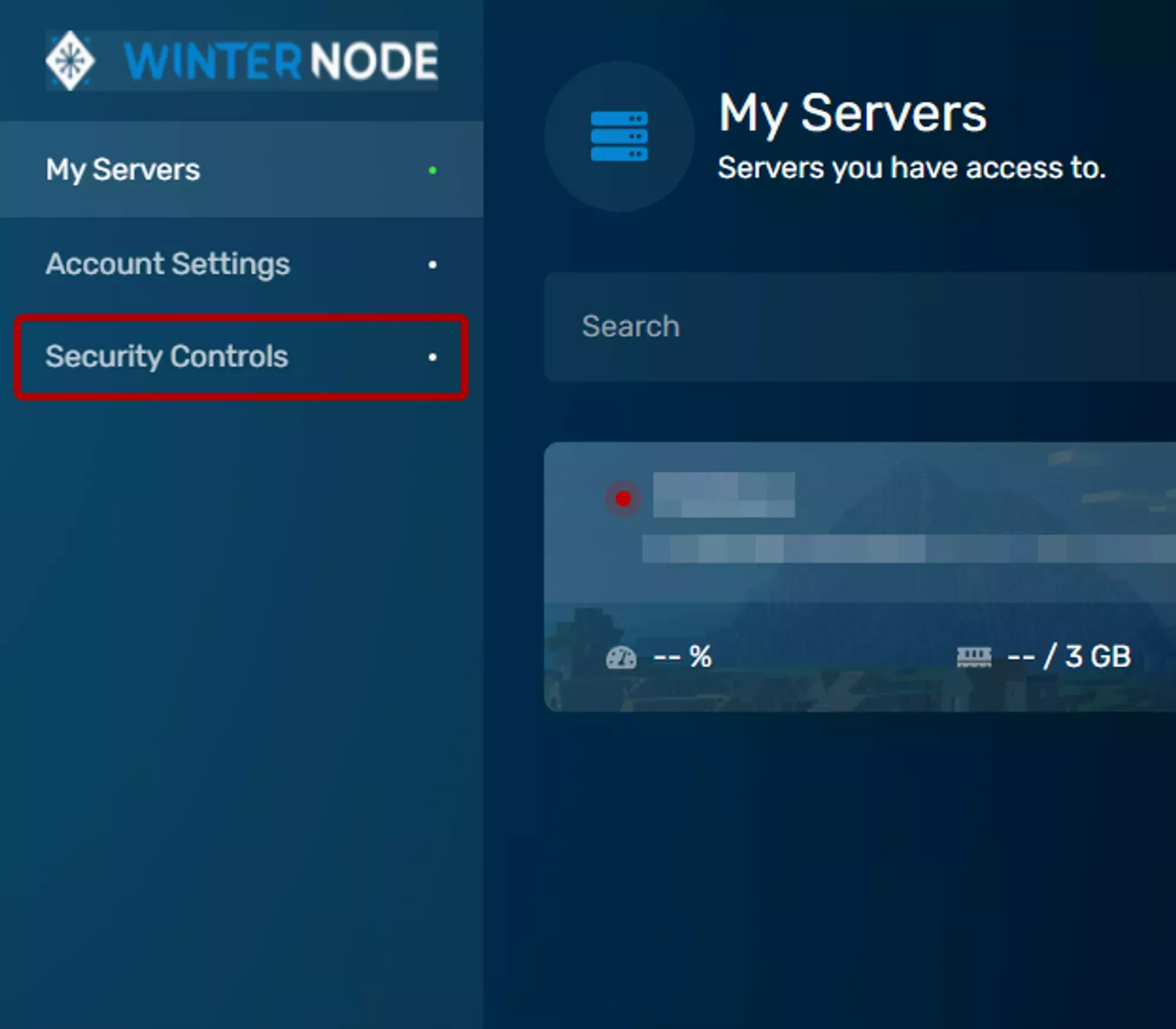
Click the “2-Factor Authentication” tab and click “Enable 2-Factor Authentication”.
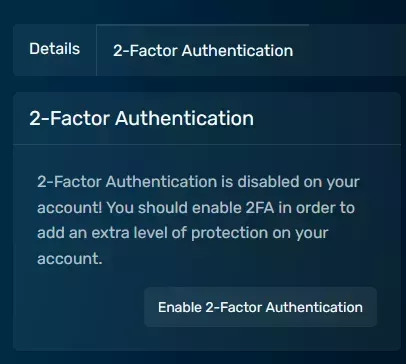
Scan the QR code or enter the code into your Authenticator app.
You can scan the QR code using an app like Google Authenticator or Authy or you can enter the code manually into either of the two apps. You can also click the alphanumeric code to copy it into your clipboard.
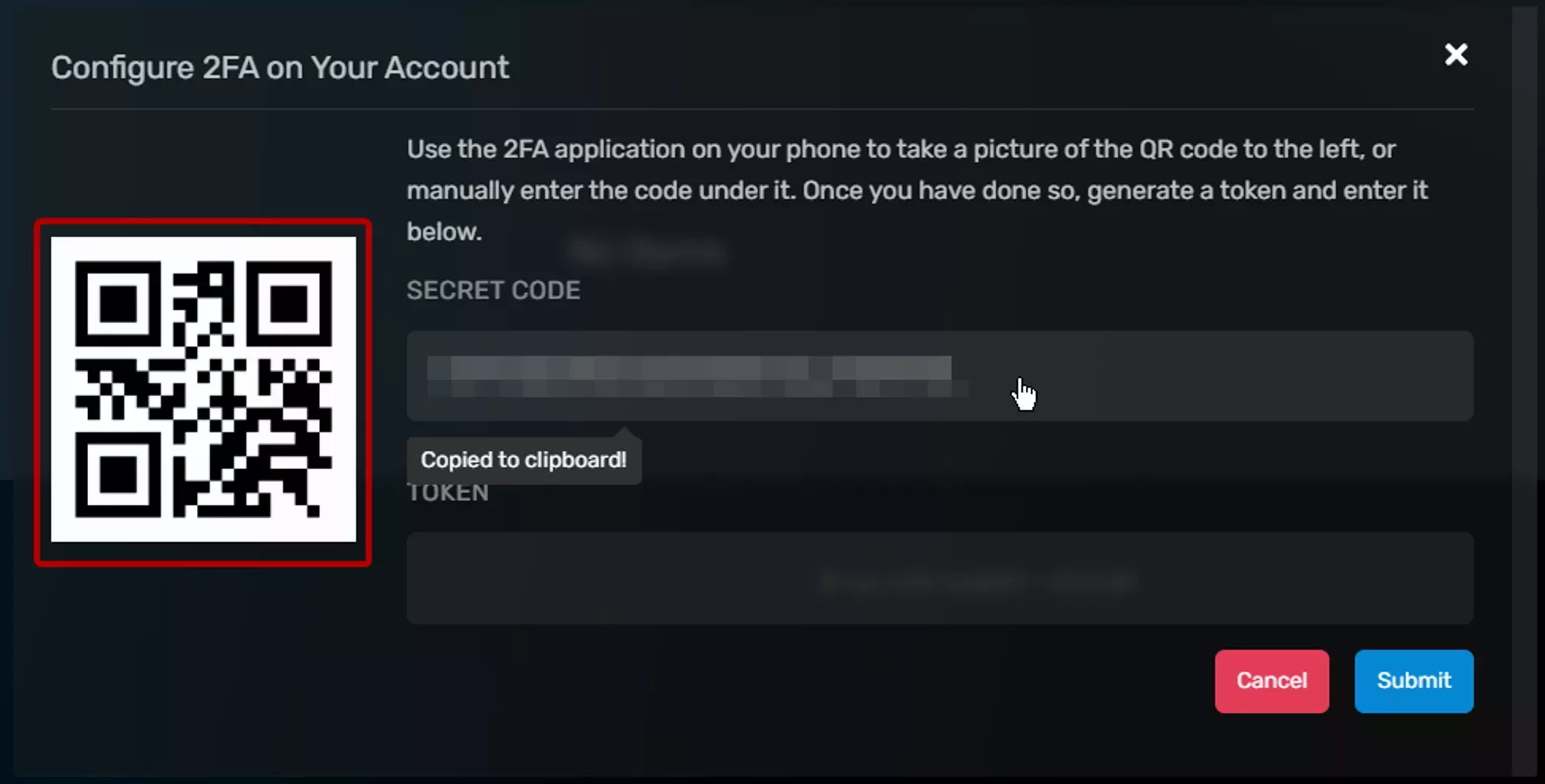
- Enter the numbers that your app provides into the “Token” field.
Getting an API Key
What is an API Key?
An API Key can be used to interact with the Game Panel API and automate most of the tasks you’re able to do manually using the Game Control Panel (GCP). Every request you send to the API will need to be authorized using an API key, most often the same API Key for one project.
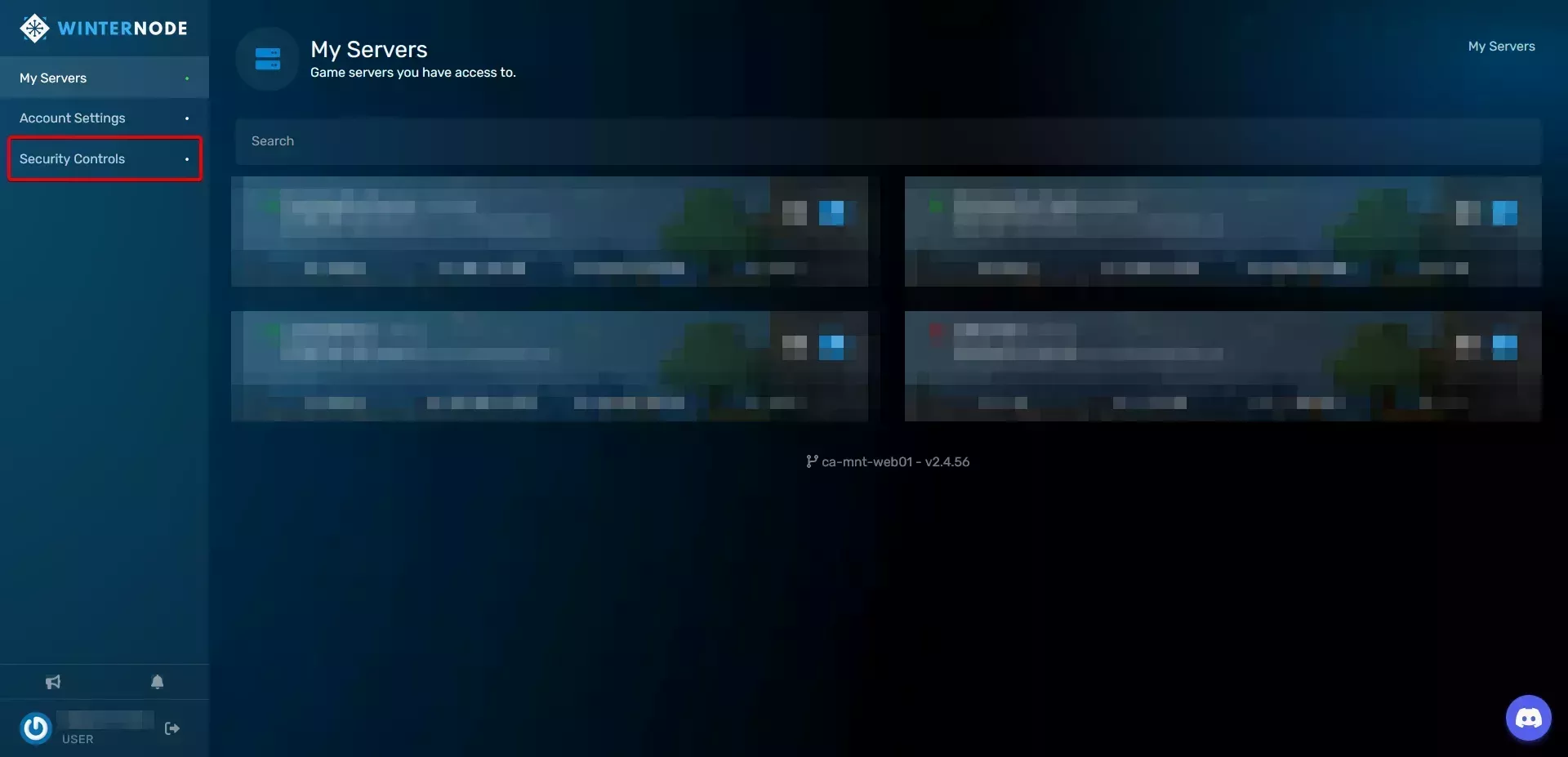
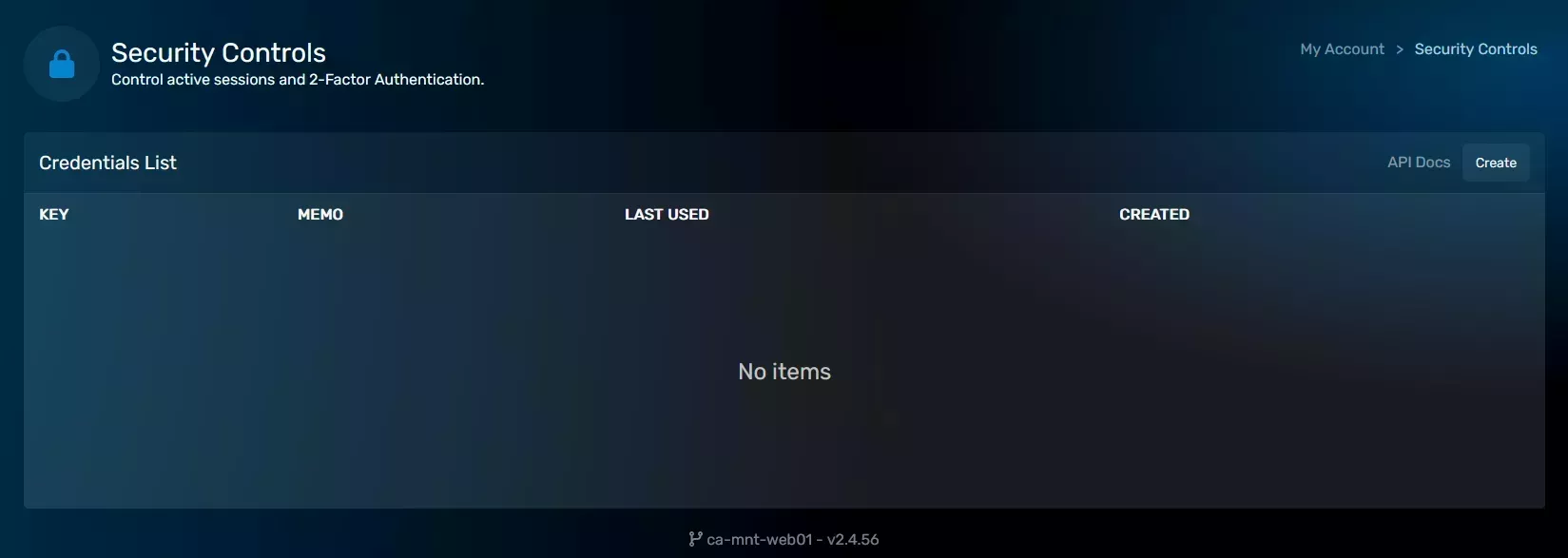
Log into the GCP and open the “Security Controls” tab on the bottom left.
Click the “Create” button on the top right of the list.
Fill out the “memo” field with a name or reason for the API key
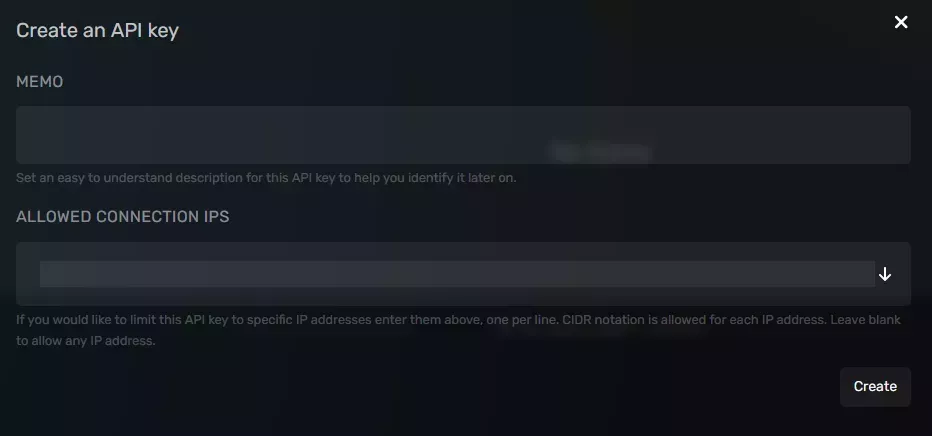
Optionally limit the IPs the API key can be used from by entering each IP into the “Allowed Connection IPs” separated by a comma.
Copy the key by clicking on the “KEY” item in the list to reveal and the copy
