


 Minecraft
Switch your server between Paper, Forge, Fabric, Vanilla, proxies, and more, right from the Game Panel. No downloads, no uploads.
Install or switch an edition
- Stop your server, then open Server Options > Version in the Game Panel.
- Choose an Edition, then choose its Version. Click the refresh icon in the top-right corner of the Edition panel to check for new editions and versions. Turn on SNAPSHOTS above the version list only when you want an unstable snapshot build.
- Leave Delete all server files first off to keep your files, or turn it on for a complete wipe. Click Install in the bottom-right corner and wait for the installation confirmation.
- Before starting your server, return to Server Options > Startup Parameters and verify or set Java Version to match the edition and version you installed. See Java Version Selection, then start your server.
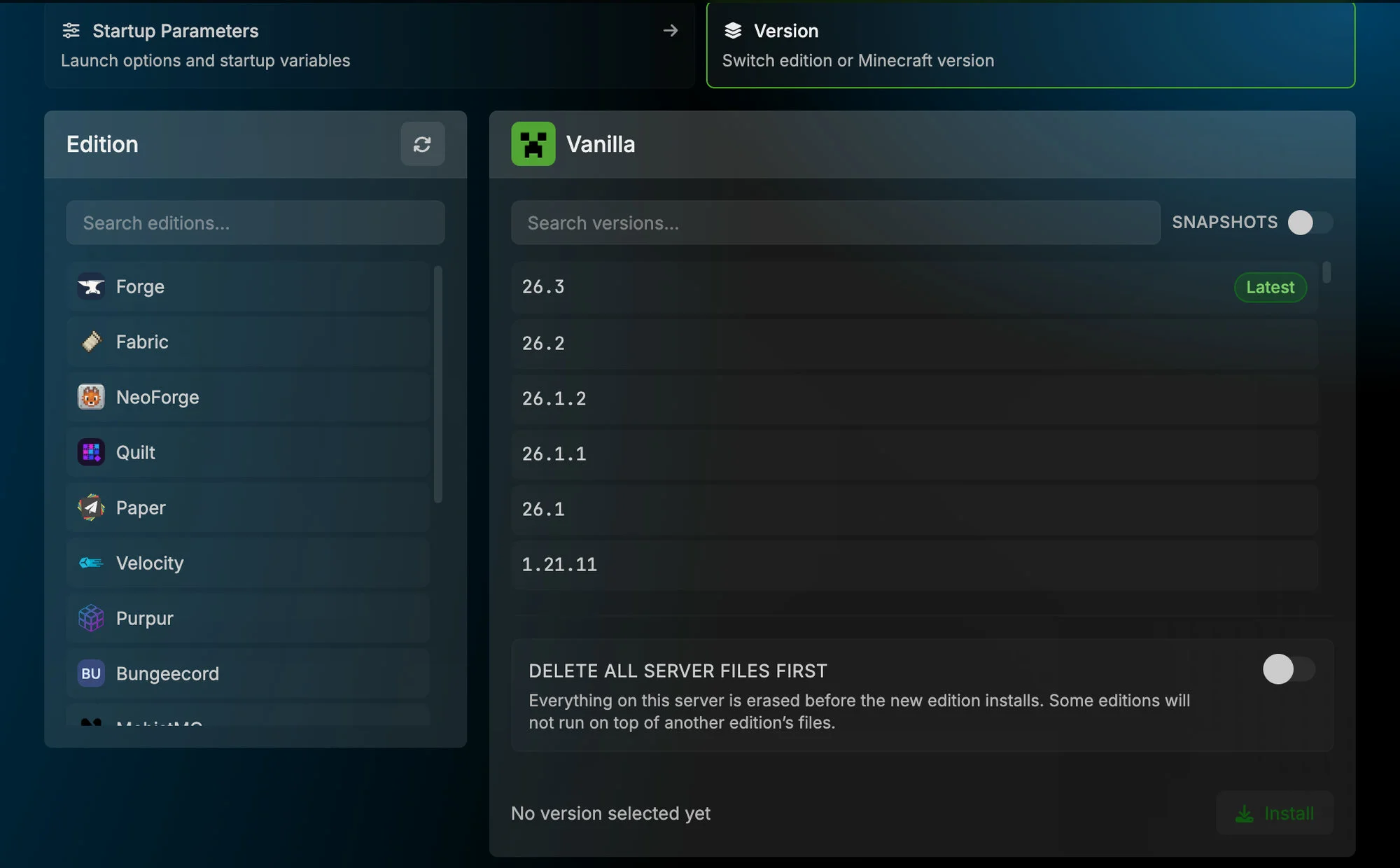
Available editions
For what each one does, see Server Software Types. Turn on SNAPSHOTS above the version list to show pre-release builds. Snapshot builds are unstable.
- Plugins: Paper ✓, Purpur, Spigot, CraftBukkit
- Mod loaders: NeoForge (1.20+), Forge, Fabric, Quilt
- Vanilla: Vanilla
- Experimental: Pumpkin (a partial Rust reimplementation of the server, so many vanilla features and plugins are missing)
- Proxies: Velocity ✓, BungeeCord, Waterfall (proxy setup)
- Hybrid (mods + plugins): MohistMC, Banner, Sponge
Server won’t start after installing?
Contact support with your Server UUID, the edition and version you installed, and the last 50 lines of console output.
Frequently Asked Questions
No, not unless you enable Delete all server files first. With it off, the installer replaces the server software but leaves all existing files (world, configs, plugins, mods) in place. Some editions may not work properly with files left over from a different type, so check the notes for your specific edition.
Delete all server files first removes every file on your server before installing the new edition. This gives you a completely clean slate. It cannot be undone, so always take a backup before enabling it.
Technically yes, but mods from one loader are not compatible with the other, and leftover mod files can cause startup errors. Turning on Delete all server files first is strongly recommended when switching between mod loaders.
The edition is the server software (e.g. Paper, Forge, Vanilla). The version is the Minecraft version that edition runs on (e.g. 1.21.4). You select both separately in the installer.
The installer includes all stable releases for most editions. For Fabric, only the latest loader version is offered per Minecraft version. If you need a specific older loader build, install it manually via SFTP and update the Server JAR filename in Startup Parameters.
Set Edition to Forge (or NeoForge), set the Minecraft version and Forge build your modpack needs, leave Delete all server files first off, and click Install. The installer sets the Server JAR for you, so you do not need to touch Startup Parameters. NeoForge is the successor for Minecraft 1.20+; pick it if your mods require it.
Set Edition to Fabric, choose your Minecraft version, leave Delete all server files first off, and install. Only the latest Fabric loader build is offered per Minecraft version; if a pack needs an older loader build, download the server jar from fabricmc.net and update the Server JAR filename in Startup Parameters.
Your Server JAR File (Startup Parameters) is pointing at the vanilla jar instead of the modloader jar. Set it to the modloader jar's exact name and restart. The Edition Installer normally sets this automatically, so this usually means the jar was changed by hand or left over from a manual install.