Finding the IP and port
Bedrock Edition servers running the Bedrock Edition software, IE not using the Geyser plugin/proxy, can be connected to using the Primary IP and port that you can find by Locating the IP address and port of your server.
For players
As a server owner, you should share the IP address or domain and port (if applicable) with your players. As a player, you can follow the steps below.
The UI on different Bedrock Edition devices is very similar, but we’re using Android as an example.
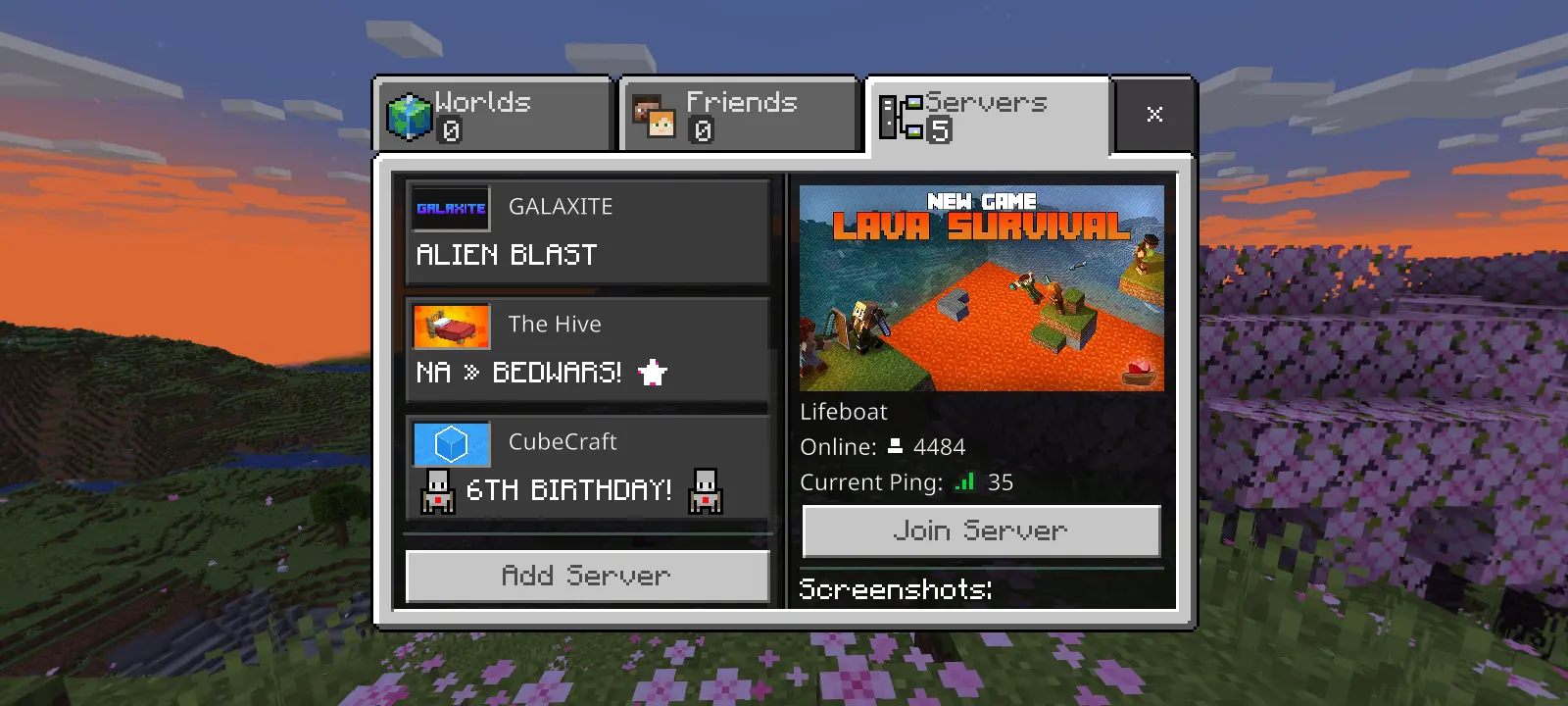
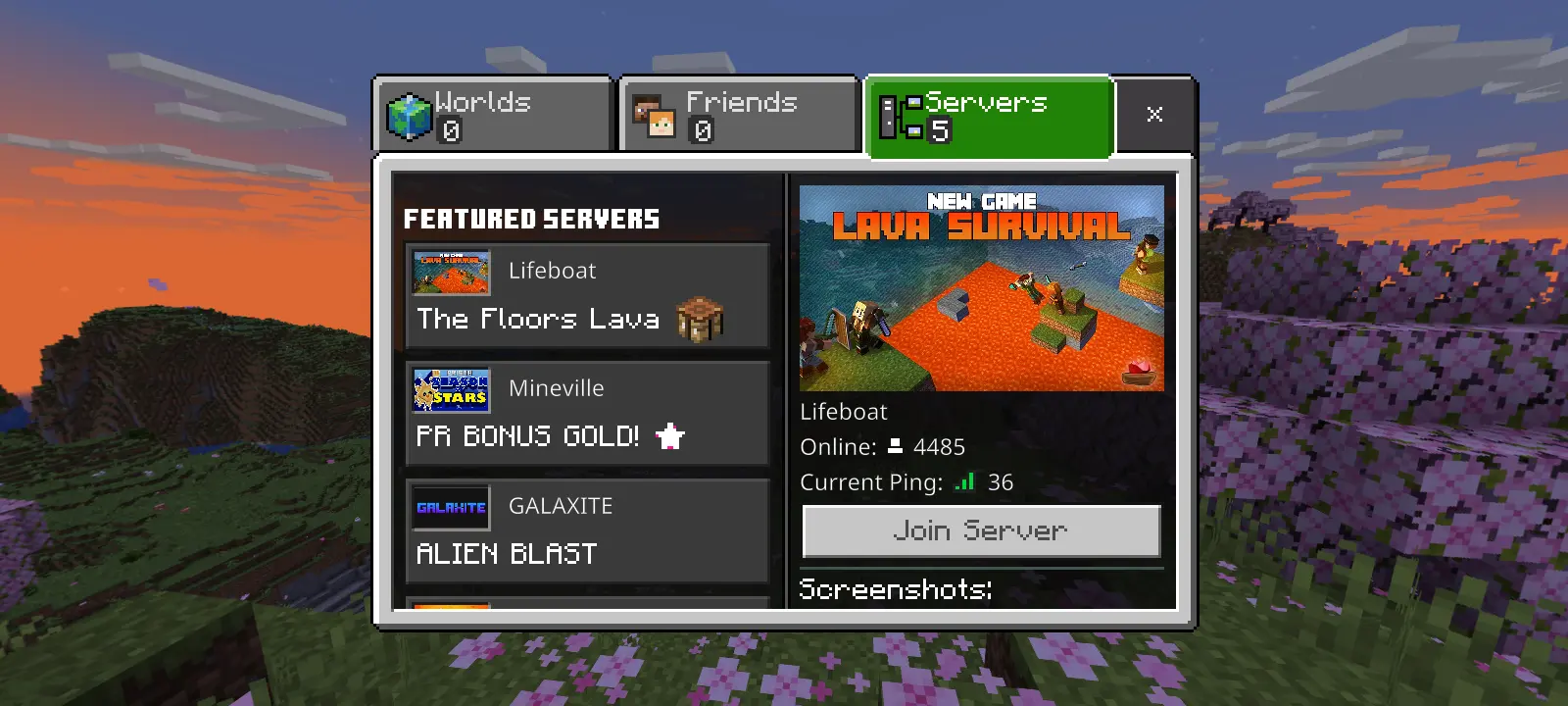
Once you have the address and port, you’ll need to navigate to the “Servers” tab of the “Play” menu, then scroll down below the “Featured Servers” to find the “Add Server” button.
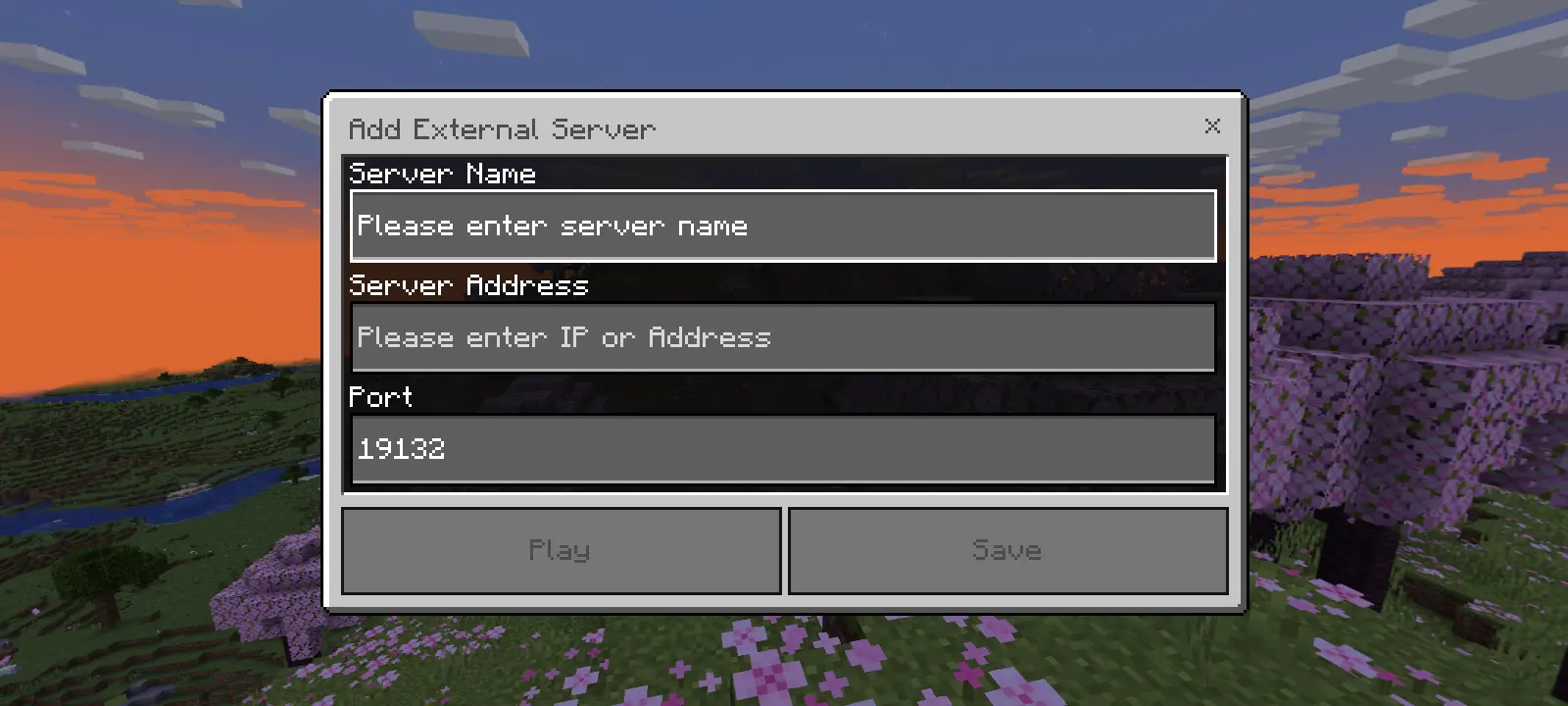
You should get a popup with the title “Add External Server”, which has fields for the “Server Name”, “Server Address”, and “Port”. The “Server Name” can be anything you like, but the “Server Address” should be the address and port you figured out previously.