The Game Control Panel (GCP) is where you manage your WinterNode servers. Start/stop, file management, console, scheduled tasks, databases, and configuration all live here.
Logging In
If this is your first service with us, you’ll receive an email with the subject “Account Created” where you can set your password.
- Click the link in the “Account Created” email to set your password. (Check your spam folder if you don’t see it.)
- Open the Game Control Panel.
- Log in with your email address and the password you just created.
Finding Your Server
Once logged in, you’ll see your server list.
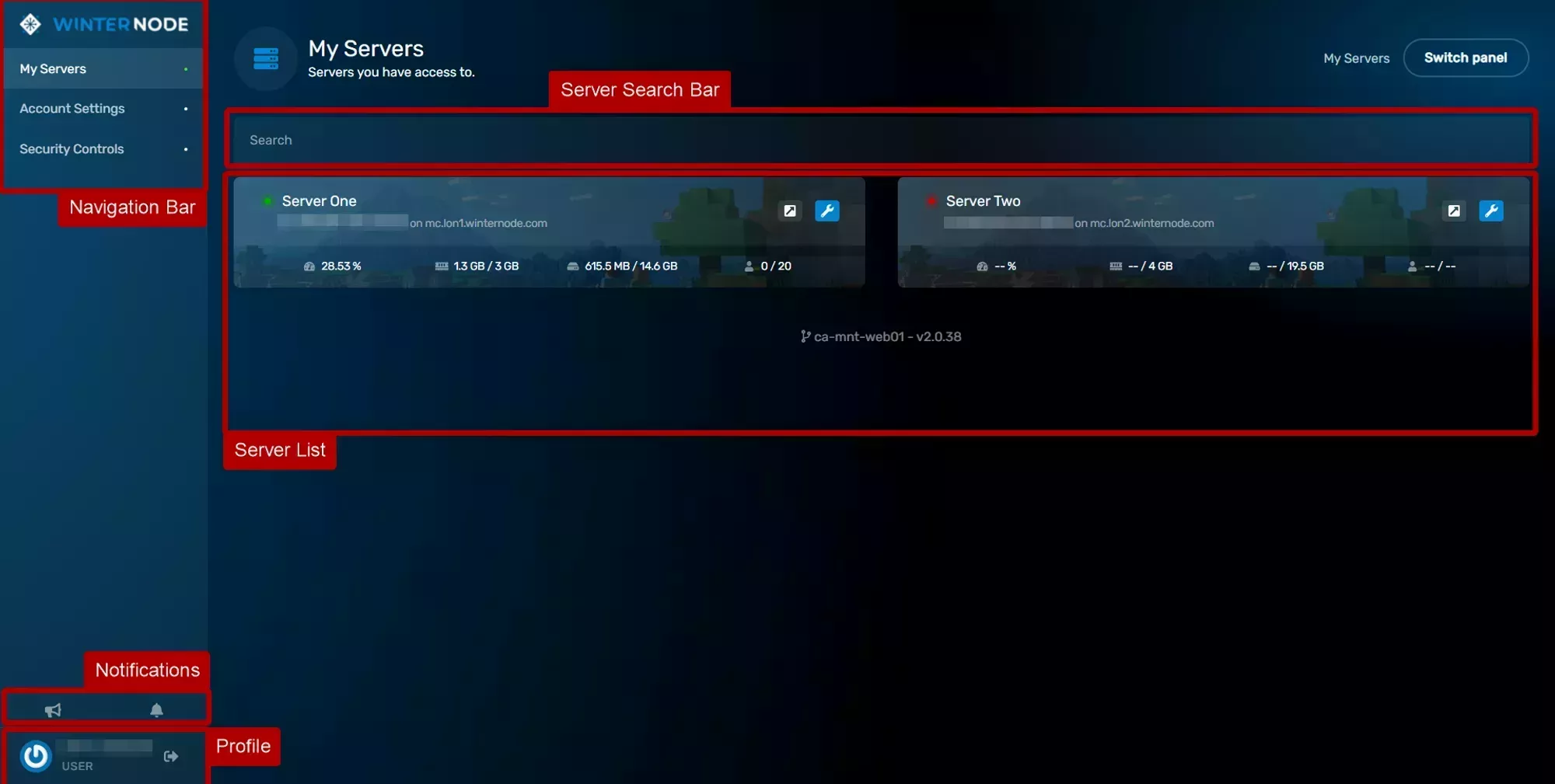
Each entry shows:
- Status indicates whether the server is running, stopped, or starting
- Name is the display name of your server
- UUID is the unique identifier (used in support tickets)
- Primary IP is the IP:port players use to connect
- Node is which physical machine your server runs on
- Usage shows current CPU, RAM, disk, and player count
Click Manage (the wrench icon) to open a server’s management page. The arrow icon next to it opens a pop-out console window.
Server Page Layout
When you open a server, you’ll land on the console page.
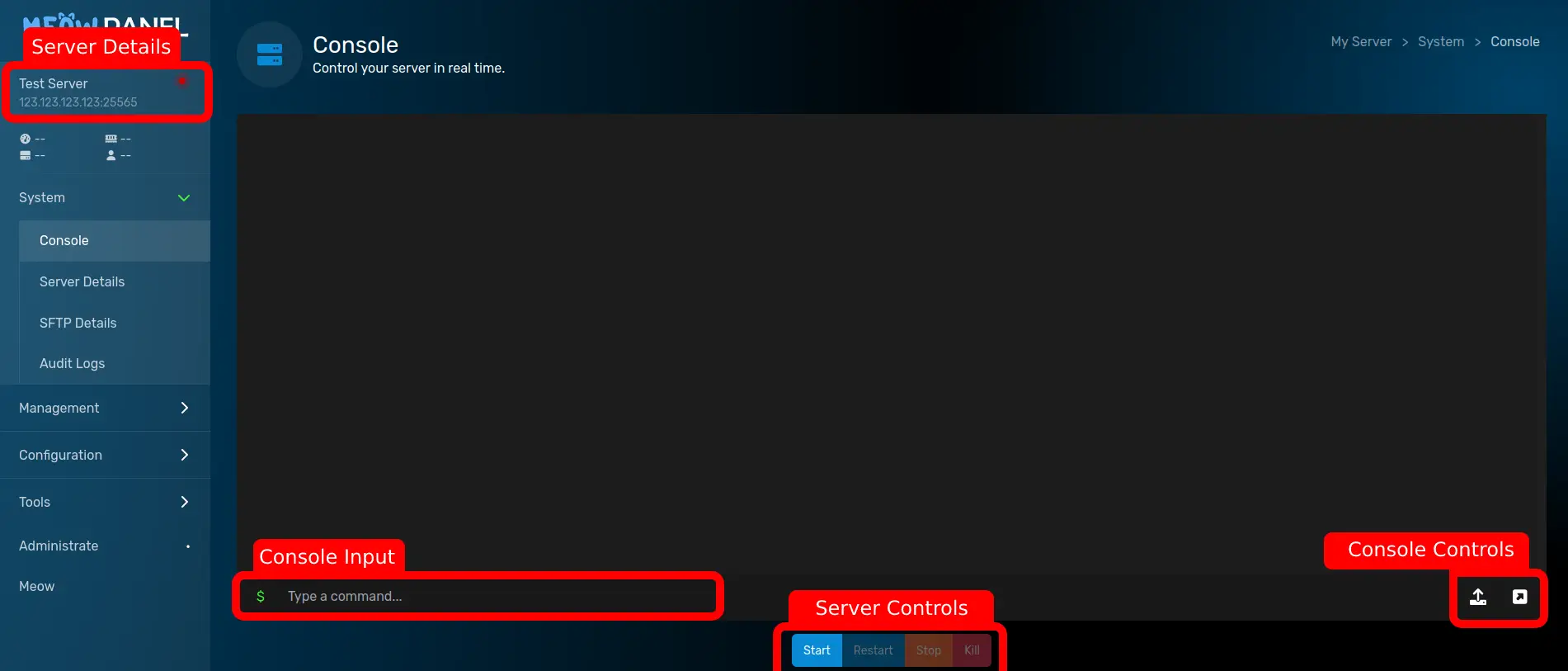
From here you can:
- Console to view server output and send commands
- Server Controls to start, stop, restart, or kill the server
- Usage Graphs for live CPU and memory usage
The sidebar gives access to everything else: file management, databases, schedules, startup configuration, and more.
Resetting Your Password
If you need to reset your Game Control Panel password, there are two ways:
From the Login Page
Use the Reset Password button on the GCP login page. You’ll receive an email with a link to set a new password.
From the Client Area
If you no longer have access to the reset email, you can reset your password through the Client Area.
- Navigate to “Services” → “My Services” in the Client Area.
- Select a service from the list.
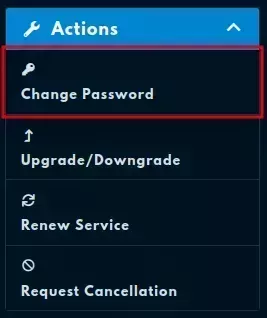
- Click on “Change Password”.
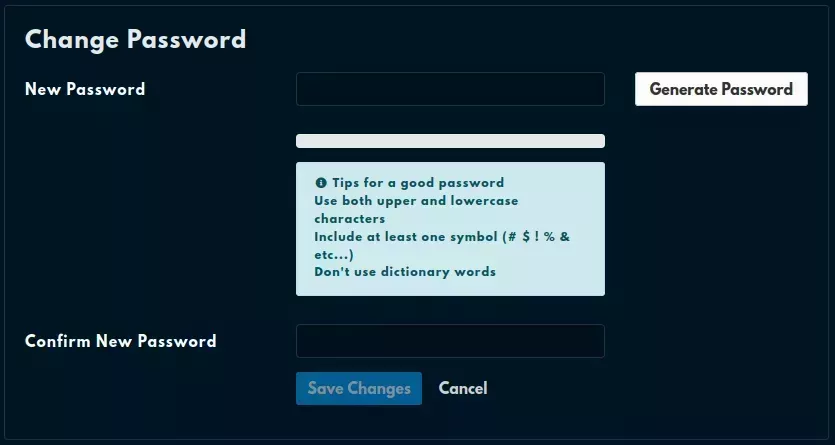
- Enter a password into both of the provided fields.