


If you need to grant access to your server’s console or your billing account then you’ll want to use a Panel Sub-User or a Billing Sub-User, respectively. In either case, the new user will have their own account with their own password and 2FA separate from yours. This allows you to grant your team access to what they need without compromising the security of your account or theirs.
As the owner of the service, you can even limit what the Game Panel Sub-Users or Billing Sub-Users can do on the respective parts of our website. This is mostly accomplished by both the Game Panel and the Client Area providing a permissions system for each individual Panel Sub-User or Billing Sub-User.
Billing Sub-Users
A Billing Sub-User has access to the Client Area and as such can manage things like your Invoices, Services and Support Tickets. With the built in permissions system you can control what each user has access to, so it’s easy to ensure that your team can handle their respective roles effectively.
Create a Billing Sub-User
Log into the Client Area and navigate to “Account & Panel” -> “Account” -> “User Management”.
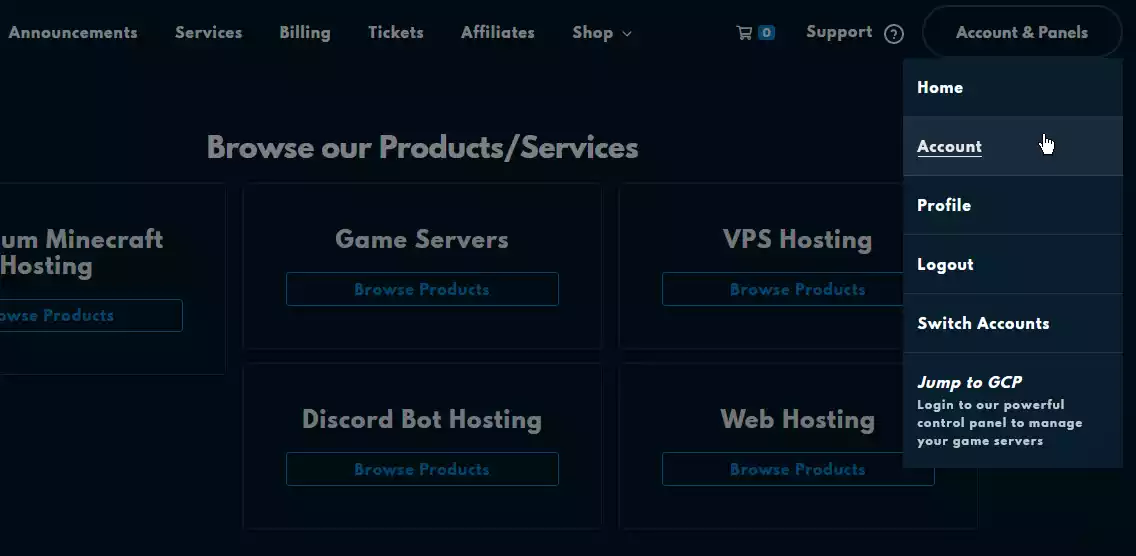
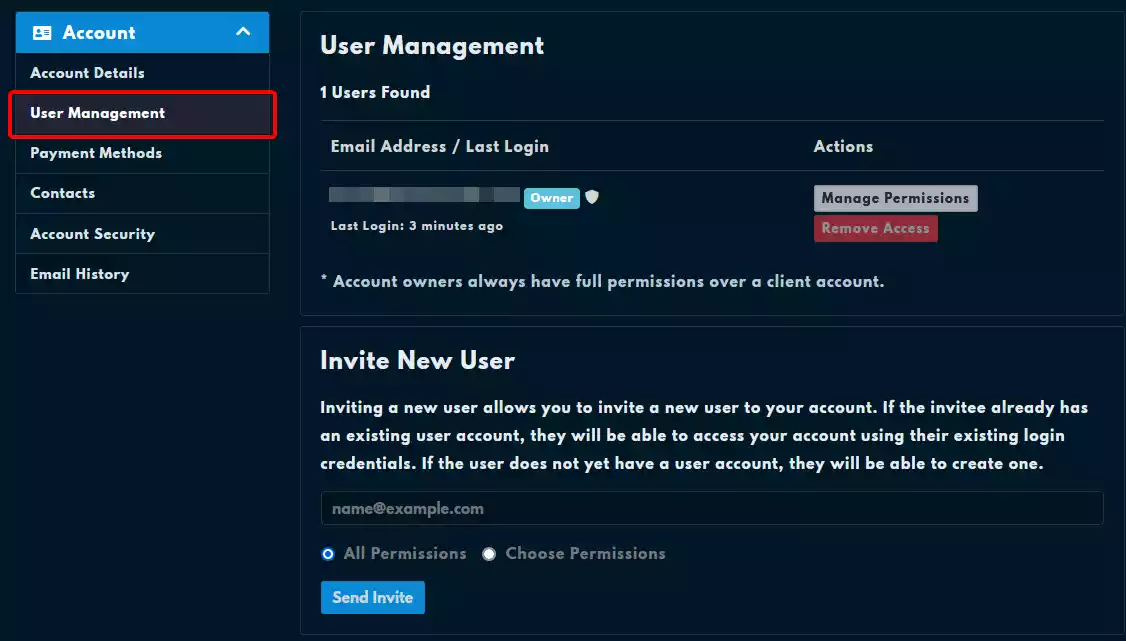
- Click “Invite New User”.
Enter the user’s email address.
By entering their email address and sending an invite, you’ll be sending them an email notifying them and giving them the option to accept the invite or ignore it.
Select the permissions you want the user to have
Before sending the invite you also have the option to grant them every permission available for a Billing Sub-User, or specifically select the permissions you want by selecting the
Choose Permissionsradio button instead of theAll Permissionsradio button as demonstrated in the image below.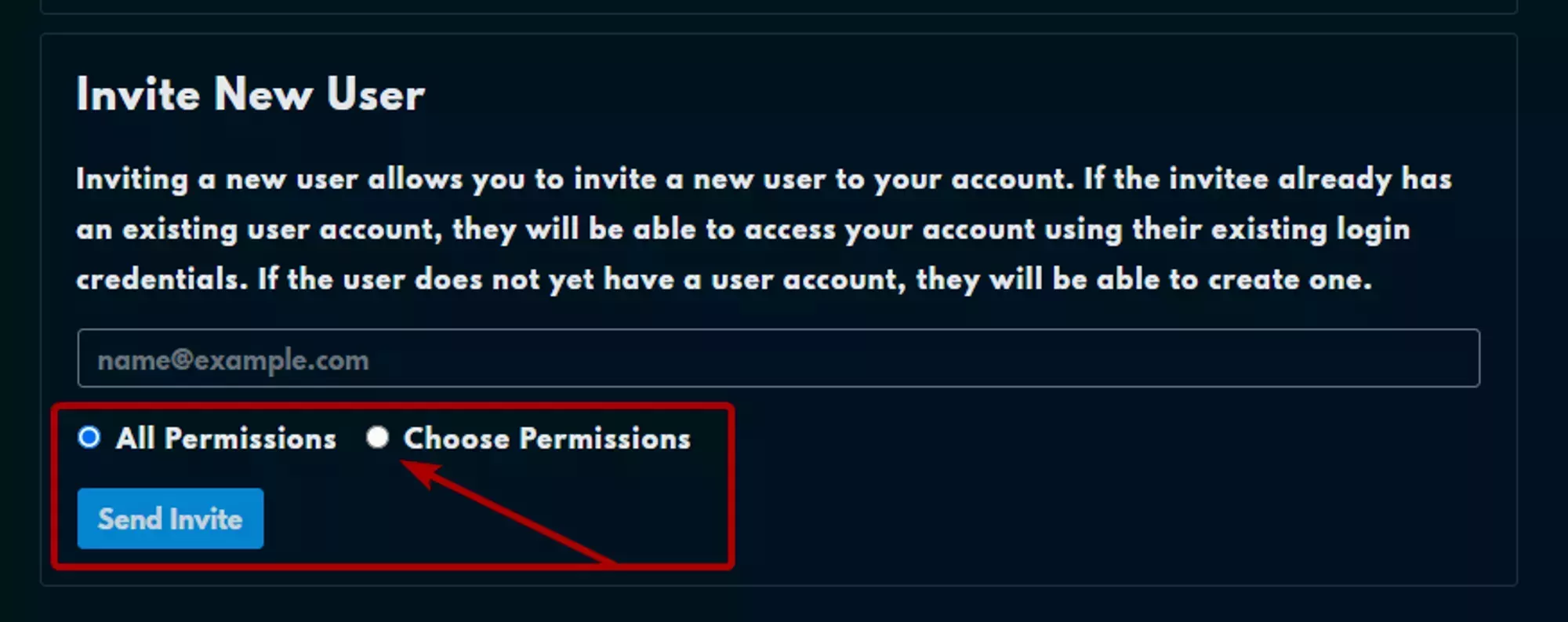
Click “Send Invite”.
Billing Sub-User Verification
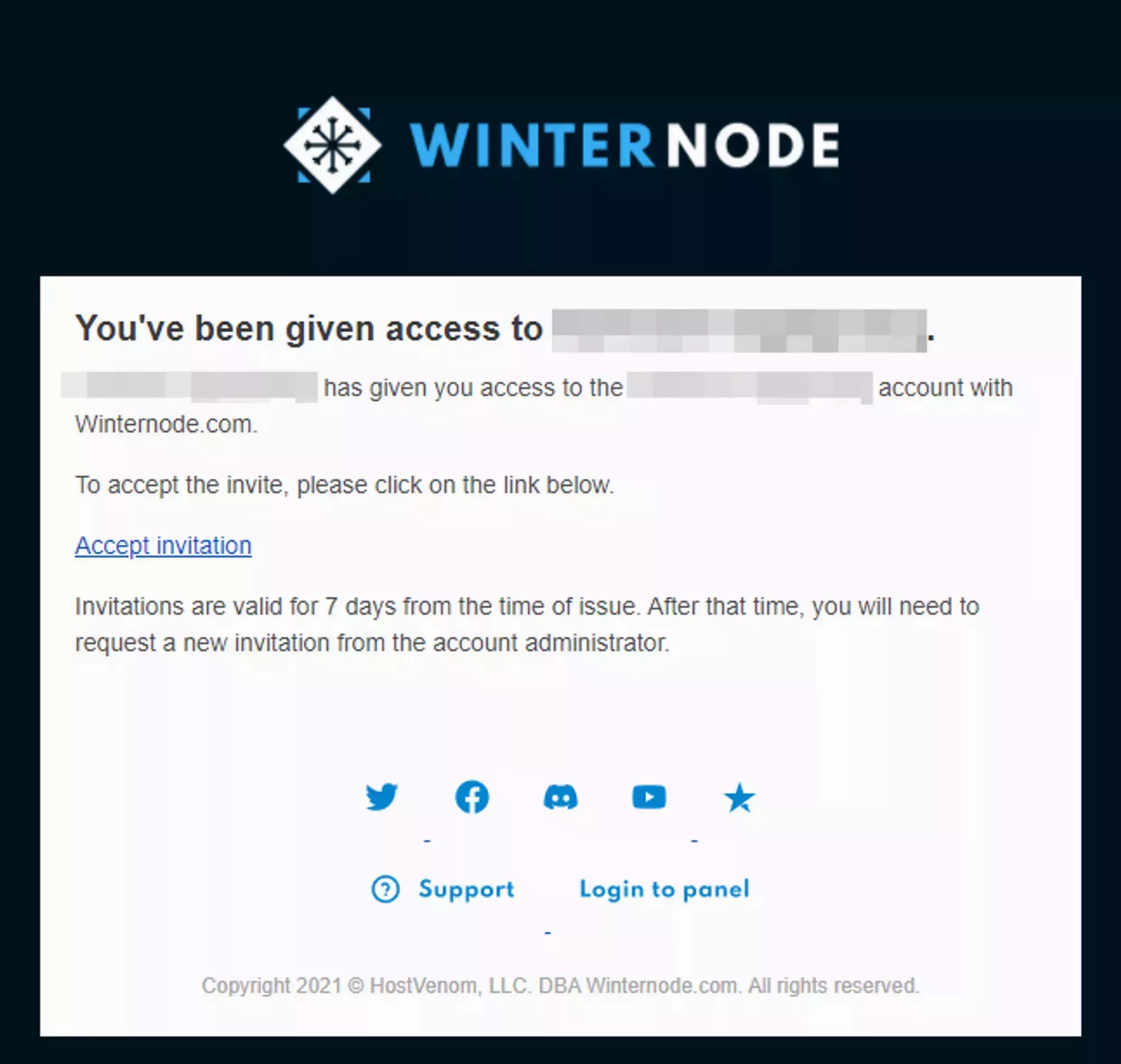
When you invite a new Billing Sub-User they will receive an email that looks similar to the example shown to the right and will have 7 days to accept the invite. If they choose not to accept your invite then the link included in the email will expire and they won’t have any access to your Billing Account.
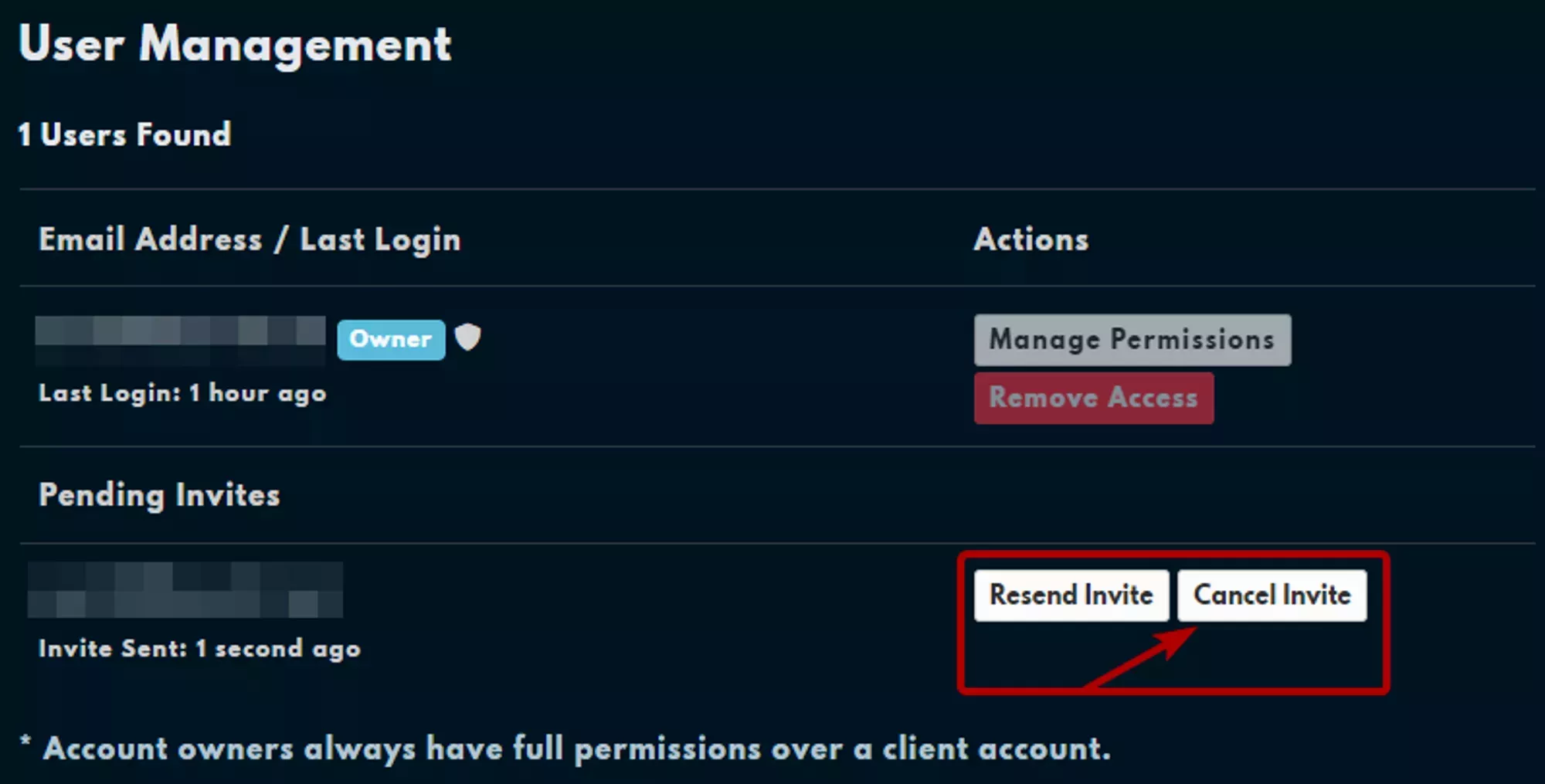
If they didn’t receive the email for whatever reason, you can resend the the invite from the User Management page by clicking on the Resend Invite button under the Pending Invites header as noted in the image to the right.
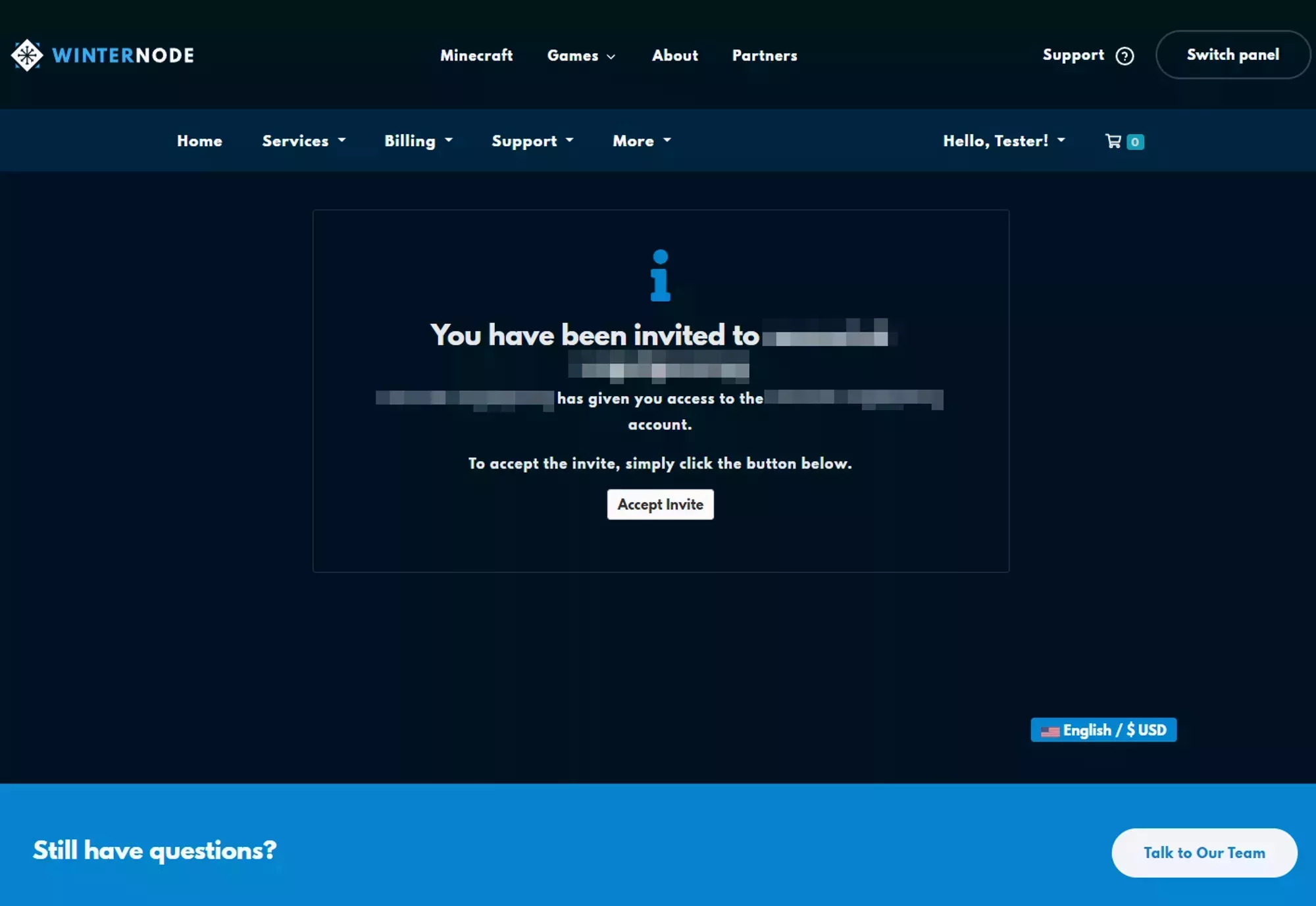
After clicking on the accept invitation link, the Billing Sub-User will see a page similar to the one shown on the right and after accepting the invite from this page they will have access to your Billing Account with the permissions you assigned to them.
Removing an existing Billing Sub-User
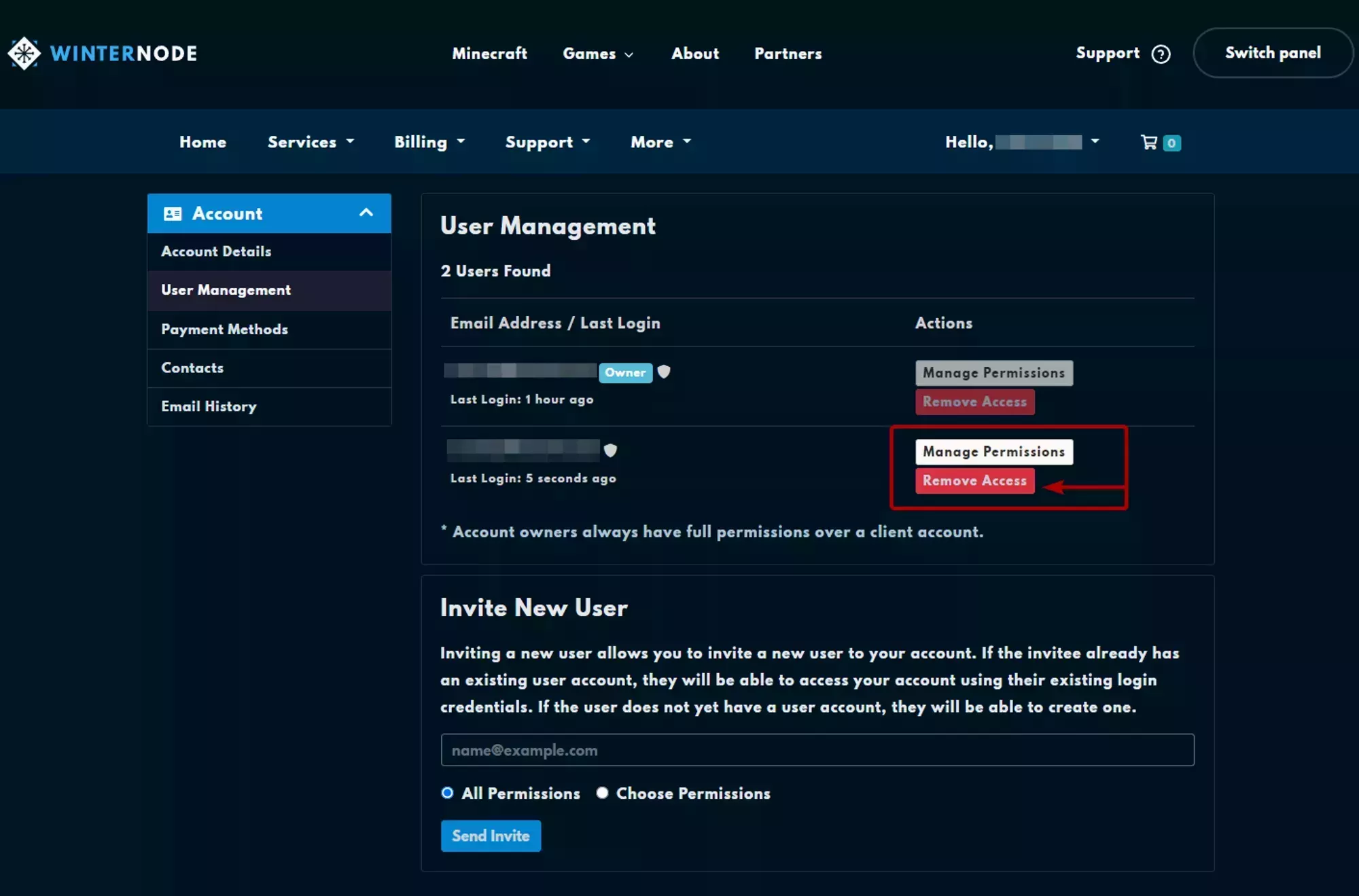
To remove an existing Billing Sub-User navigate to the User Management page and click on the Remove Access button and then confirm your choice in the confirmation popup. This will permanently remove this Billing Sub-User from your Billing account unless you re-invite them.
Securing a Billing Sub-User Account
Billing Sub-Users use separate authentication methods than the primary account, which is it’s own protection against unwanted actions taking place on your service, but to take full advantage of the protection of a Sub-User you’ll want to make sure you enable 2-Factor Authentication for the Sub-User and grant them only the Permissions they need.
Permissions
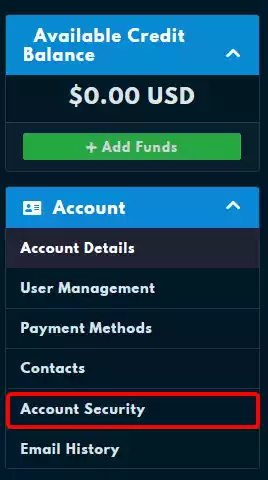
You can limit what a Billing Sub-User can do either when you send the invite or after by selecting specific permissions from a list. We go over the list of permissions, what they do, and their limitations below, as well as where you can modify the Billing Accounts Sub-User’s permissions. You can select the permissions a Billing Sub-User before you invite them by selecting the You can manage the permissions of an existing Billing Sub-User by navigating to the This is a list of all of the permissions provided by the panel, brief descriptions of them, and whether or not their relevant to services provided by WinterNode. Access and modify the client profile information Ability to access, view, and modify the Account Details for the primary client client profile that invited the Billing Sub-User. Access and manage contacts Ability to View and Manage all details of Billing Contacts. View access to products, services and addons Ability to view all products, services, and addons currently purchased. Allow password resets and other actions Ability to reset passwords for all products. Allow single sign-on into services View access to domain registrations Allow domain management eg. nameservers/whois/transfers View and payment access to invoices Ability to view all current and past invoices and pay outstanding ones. Access to open, respond and manage support tickets Ability to open, view, and respond to, support tickets under Access to view and request withdrawals Access to view account email history Ability to view email history by selecting Email History from the Account side bar on the Account page (Shown in the Images below). Allow placing of new orders Ability to place new orders for products or services on the Billing Account using the payment methods on the account.Before the invite
Choose Permisions radio button under the email input as shown in the image below. 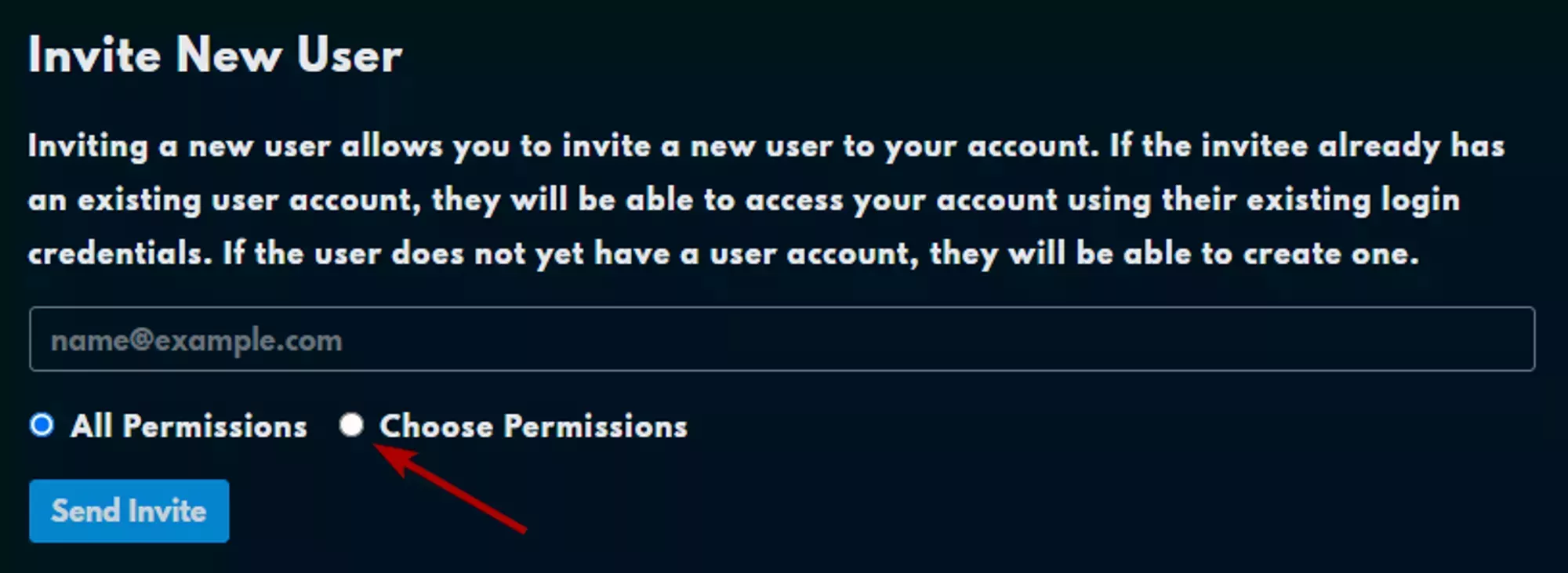
After Invite Acceptance
User Management page and selecting the Manage Permissions button next to the user you want to edit as shown in the image below. 
Permissions List
Modify Master Account Profile
View & manage Contacts
View Products & Services
View & Modify Product Passwords
Perform Single Sign-On
View Domains
Manage Domain Settings
View & Pay Invoices
View & Open Support Tickets
Support -> Tickets.View & Manage Affiliate Affiliate Account
View Emails
Place New Orders/Upgrades/Cancellations
2-Factor Authentication
If you want a sub-user to use 2FA, they’ll need to follow the steps outlined below in order to enable 2FA on their own Client Area account. There’s currently no way for you to verify or enforce that they enable 2FA.
- Log into the Client Area
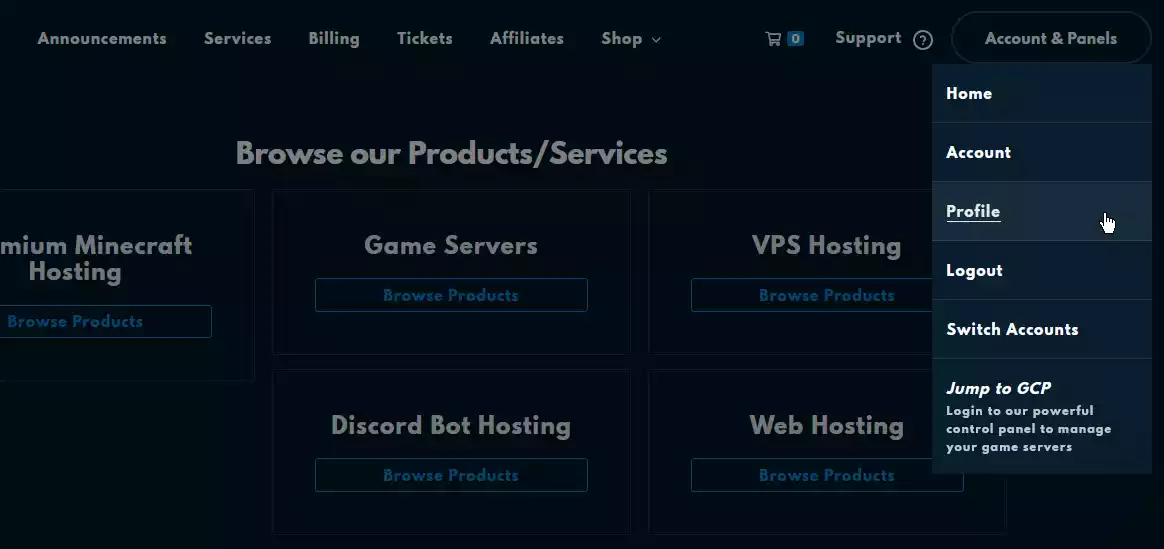
Select “Profile” from the “Account & Panels” dropdown
This is located on the upper right of the page next to the navbar, after logging into the Client Area.
Open the “Security Settings”.
This is located on the left side of the “Your Profile” page.
- Click the green “Click here to Enable” button.
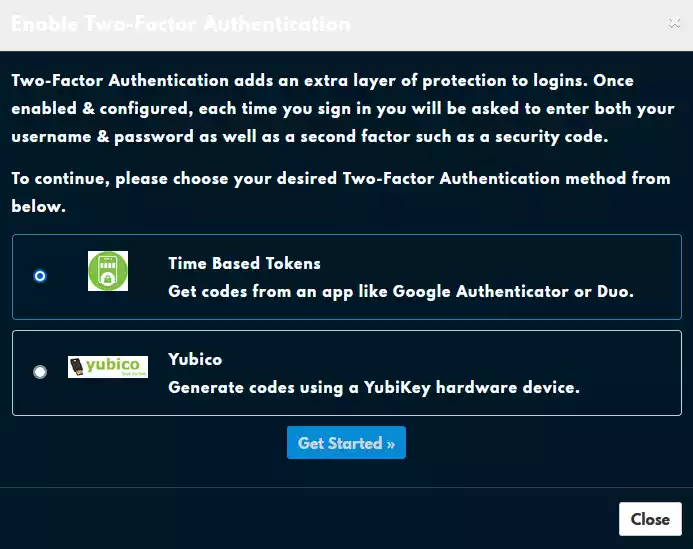
Select “Time Based Tokens” and click “Get Started”.
You’ll be presented with two options, “Time Based Tokens”, which is what we’ve covered so far, and “Yubikey, which is an entirely different kind of 2FA that requires a specialized device.
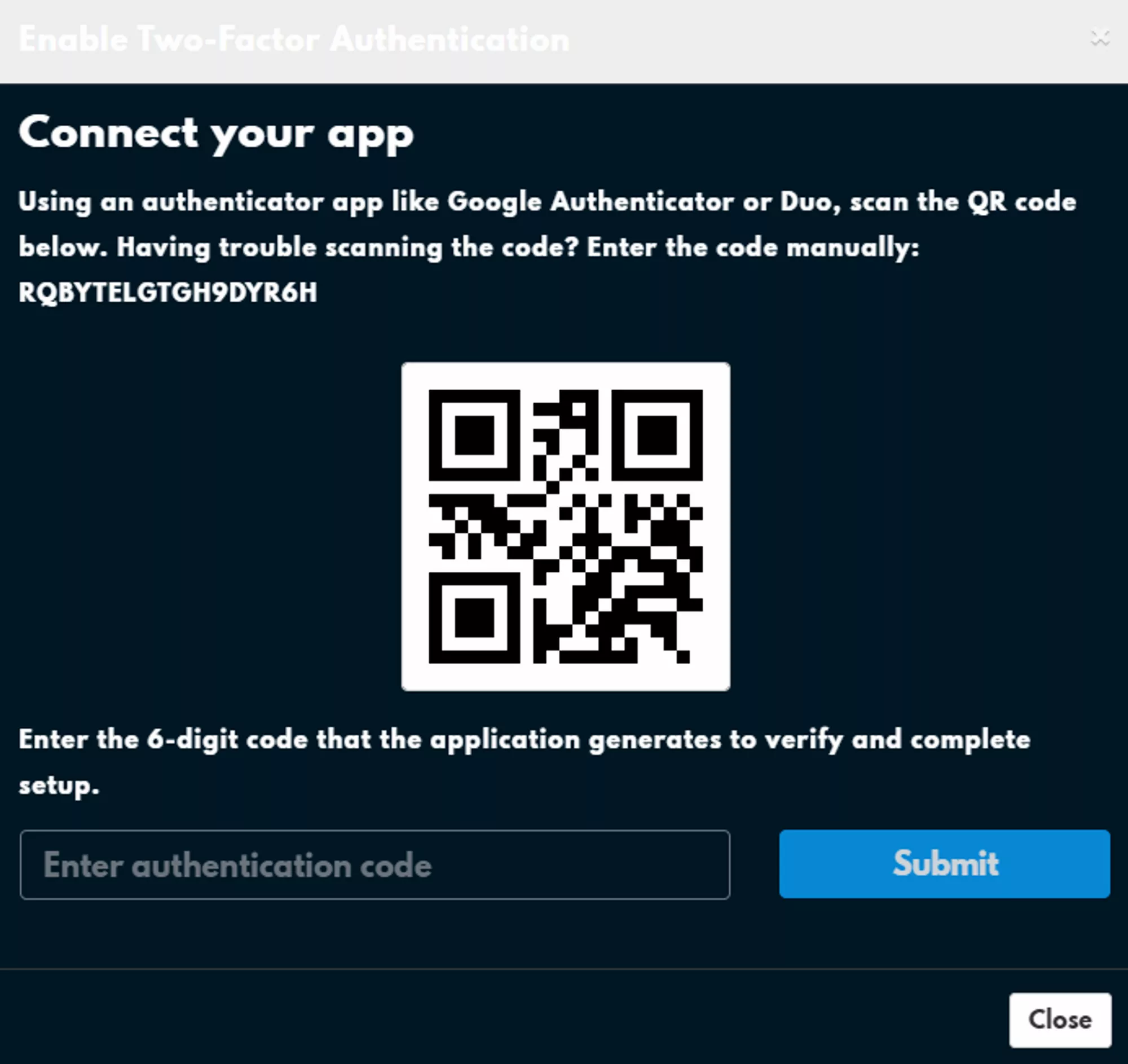
Scan the QR code with your authenticator app or enter the code directly.
You can scan the QR code using an app like Google Authenticator or Authy or you can enter the code manually into either of the two apps.
Billing Contacts
What is a Billing Contact
Contacts provide a way for you to add additional contact details to your Billing Account and select preferences for what those details should be used for. These details can be additional emails that need copies of your invoices, a personal email where you’d like to be notified of your support tickets, or an entirely separate contact where you’d like to receive all communication about your account.
Adding a new Billing Contact
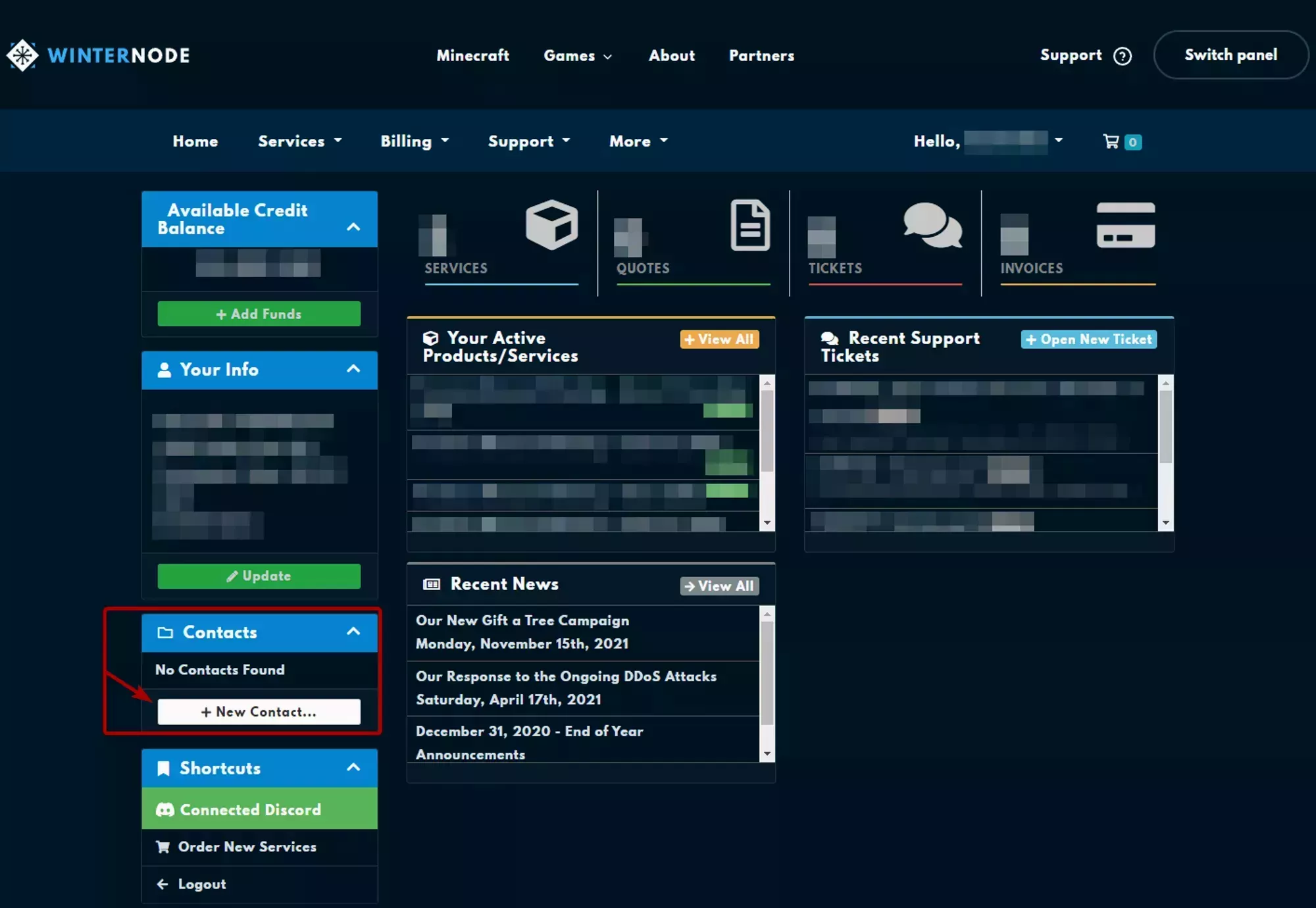
Log into the Client Area and navigate to “Add New Contact” from the “Contacts” box on the left side of the Client Area Home.
This is where you add new, or manage existing Contacts to your Billing Account.
Change the “Choose Contact” dropdown to “New Contact”.
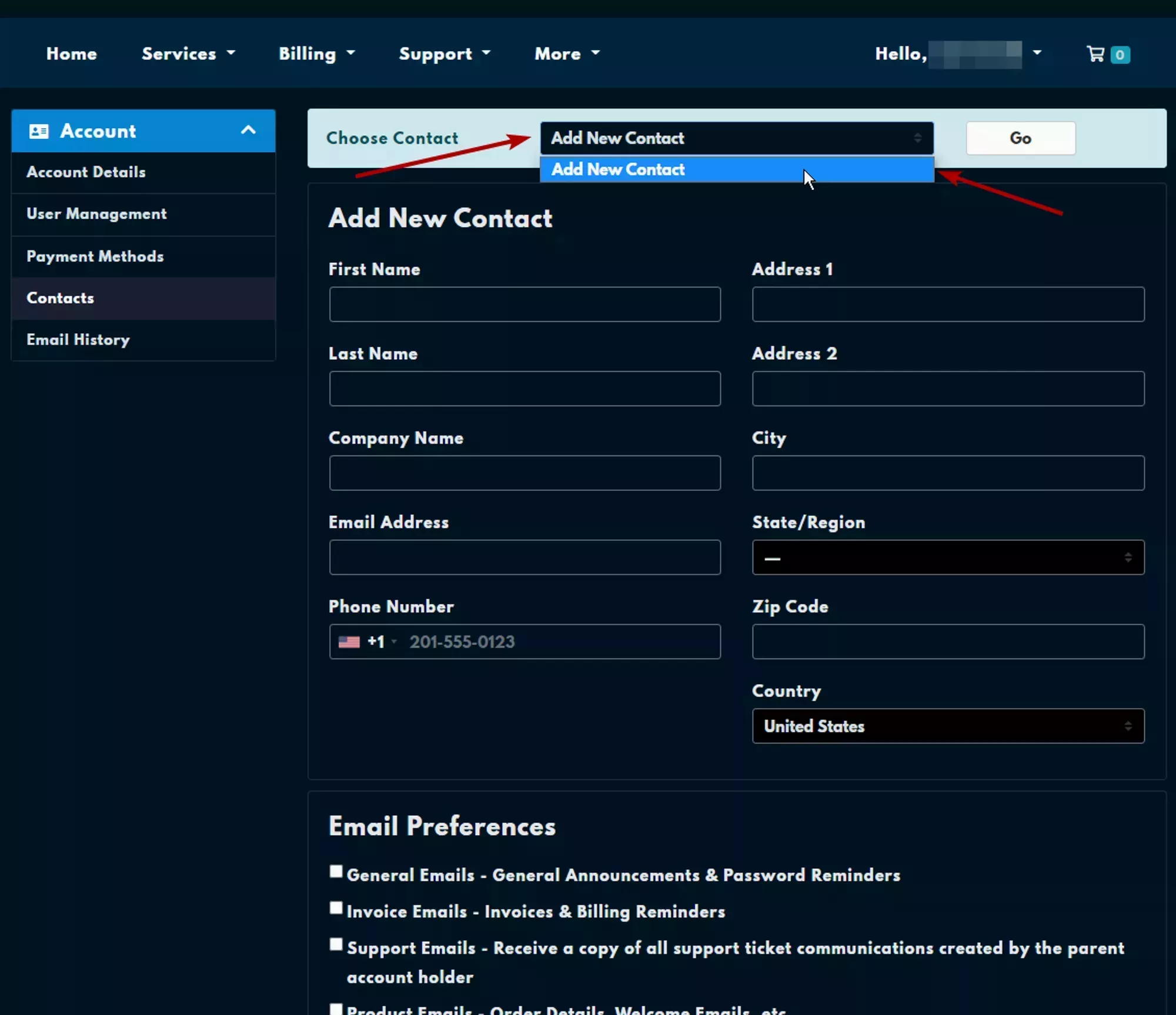
Fill out the contact information.
Every field is required except for
Company NameandAddress 2. While this is less than ideal for most use cases, it’s a limitation of the current system.- Set the email preferences using the categories at the bottom of the form.
- Click “Save Changes” to create the contact.
Removing an Existing Billing Contact
You can remove an existing Billing Contact using the steps below:
Log into the Client Area and navigate to “Add New Contact” from the “Contacts” box on the left side of the Client Area Home.
This is where you add new, or manage existing Contacts to your Billing Account.
Select the contact you wish to remove from the dropdown at the top of the form.
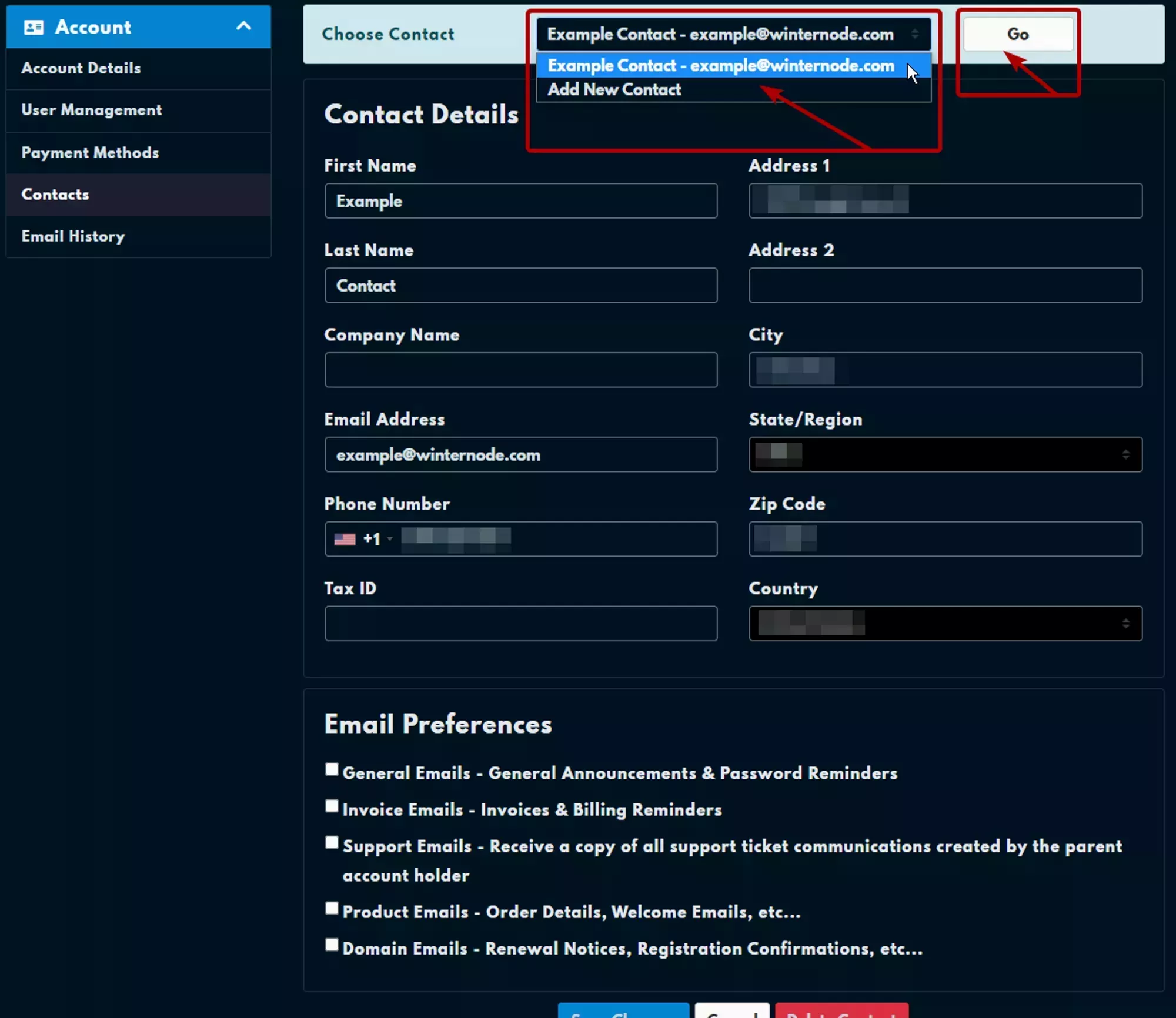
- Click “Go” to load the contact and its details.
- Click the “Delete Contact” button.
- Click the “Confirm” button if you’re sure you want to permanently delete the contact.
Modifying an Existing Contact
You can modify an existing contact by following the steps below:
Log into the Client Area and navigate to “Add New Contact” from the “Contacts” box on the left side of the Client Area Home.
This is where you add new, or manage existing Contacts to your Billing Account.
- Select the contact you want to modify from the dropdown at the top of the form.
- Click “go” to load the contact’s details.
- Edit the now populated fields.
Click “Save Changes” to update the details.
Once the new information is validated and saved, the page will be refreshed and you’ll see a green box telling you that the
