


Upgrade your WinterNode plan to increase your server’s resources, or downgrade to a lower tier. Both can be done at any time from the Client Area. When upgrading mid-billing-cycle, you only pay the difference for the remaining days, not the full new plan price.
Upgrading a Free Trial
If you’re on a free trial and want to keep your server after the trial ends, upgrade it from the Client Area using the step-by-step instructions below. This converts your trial into a paid plan and keeps all your server files, world data, and configuration intact.
If you don’t upgrade before the trial expires, the trial server is suspended automatically and stops running. The service stays on your account, so you can still upgrade it to a paid plan later. You don’t need to cancel it manually.
How Pro-Rata Pricing Works
Upgrades are pro-rated based on where you are in your billing cycle. The system calculates the price difference between your current plan and the new plan, then charges you only for the days remaining until your next renewal.
Here’s a quick example. Say you’re on a $10/mo plan and want to upgrade to a $20/mo plan, with 15 days left in your billing cycle:
- Price difference: $20 - $10 = $10/mo
- Remaining days: 15 out of 30
- Upgrade invoice: $10 × (15/30) = $5.00
You pay $5.00 now, and your next full renewal bills at the new $20/mo rate.Want more storage space?
Need more CPU resources?
Step-by-Step Instructions
- Log into our Billing Client Area.
Click on the the
Servicestab.
Select the service you wish to upgrade, downgrade, or change.

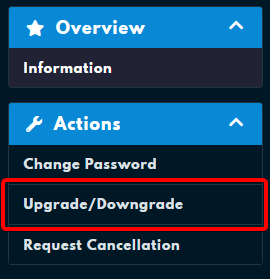
Select “Upgrade/Downgrade” from the left hand sidebar.
If you do not see this button, you may have an exclusive package. However, all publicly listed plans should have an upgrade button.
If the button is greyed out, you most likely have an unpaid invoice on this service. Navigate to Invoices in the Client Area, pay or cancel any outstanding invoices for this service, and then try again.
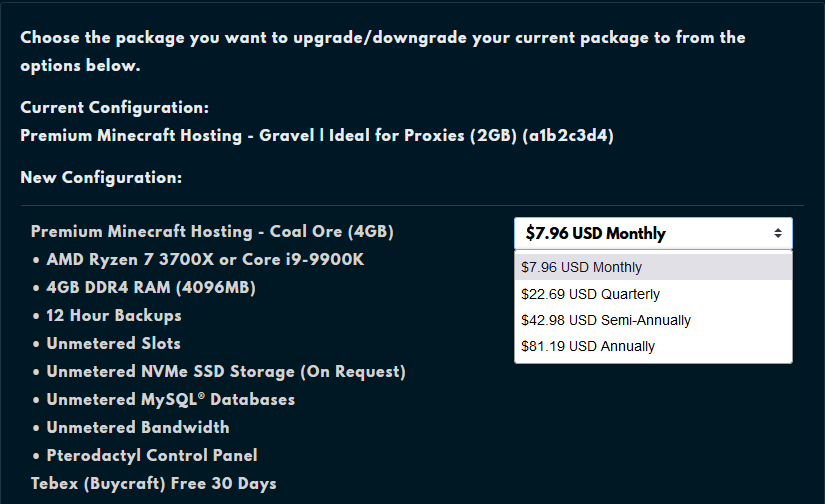
Select the package and cycle you wish to change to by pressing “Choose Product”.
You will see all available upgrade options from your current plan. Higher tiers provide more allocated RAM.
Pay the new invoice.
If you lost the invoice or aren’t sure where to find it, follow the steps below:
- Navigate to the Client Area home.
- Click on the “Invoices” button on the top right of the page.
- Select the most recent unpaid invoice.
- Restart your server to apply the new resource limits.
Upgrading for More RAM
Game server plans are tiered by RAM allocation. Upgrading to a higher plan increases the memory available to your server. After upgrading and restarting, the new limit applies automatically. No changes to your server configuration are needed.
Signs your server may need more RAM:
- Out-of-memory crashes: your console shows errors like
java.lang.OutOfMemoryError - Lag with few players: performance degrades even at low player counts
- Modpack instability: heavily modded servers frequently require 8 GB or more
- World loading failures: large worlds take excessively long to load or fail to load entirely
Frequently Asked Questions
Upgrade to a higher plan tier from the Client Area. Each plan tier provides more allocated RAM. After upgrading and restarting your server, the new memory limit takes effect automatically with no additional configuration required.
Common signs: out-of-memory errors in the server console, frequent crashes, server lag even with few players online, or difficulty loading large modpacks or world files.
No. You only pay the price difference for the remaining days in your current billing period, not the full new plan price.
Downgrades don't automatically issue credit. Open a Billing Ticket to request account credit for the unused time on your current plan.
This usually means you have an unpaid invoice on the service. Pay or cancel any outstanding invoices first, then the button will become available. If it's still greyed out after clearing your invoices, open a support ticket.
No, they are separate resources. Memory is RAM and comes from your plan tier, so more of it means upgrading the plan. Disk is storage, which is unmetered and increased free of charge when you ask in a ticket. Before upgrading for RAM, check the Memory graph across a restart: if usage drops sharply after a restart and climbs back over the following hours, a scheduled restart usually solves it without a bigger plan.
No. Upgrading your plan does not affect your server data, world files, or configuration. Only your allocated resources (such as RAM) change.
Use the Upgrade/Downgrade button in the Client Area for your trial service. This converts your trial to a paid plan and keeps all your server files. Ordering a new server from the website creates a separate server instead.